Complete your first setup
Settings has three sections: Account, Properties, and Bill forwarding. Follow these steps after creating your account, then return whenever your details change.
-
Save your preferences
Open Account, choose your display name, temperature unit, and time zone, then select Save Settings.
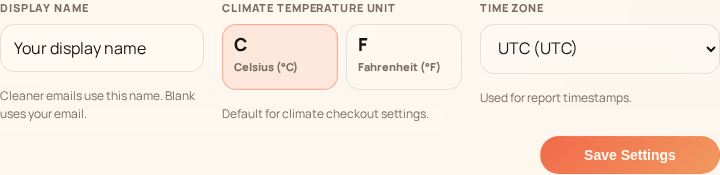
Find your profile and display defaults in the Account section. -
Add the property
Open Properties and expand Add Property. For Airbnb: choose Airbnb Listing and paste the full listing URL or numeric ID. For a rental: choose Rental Property and enter its name or address. Expand Property address, Landlord details, or Property manager when needed.
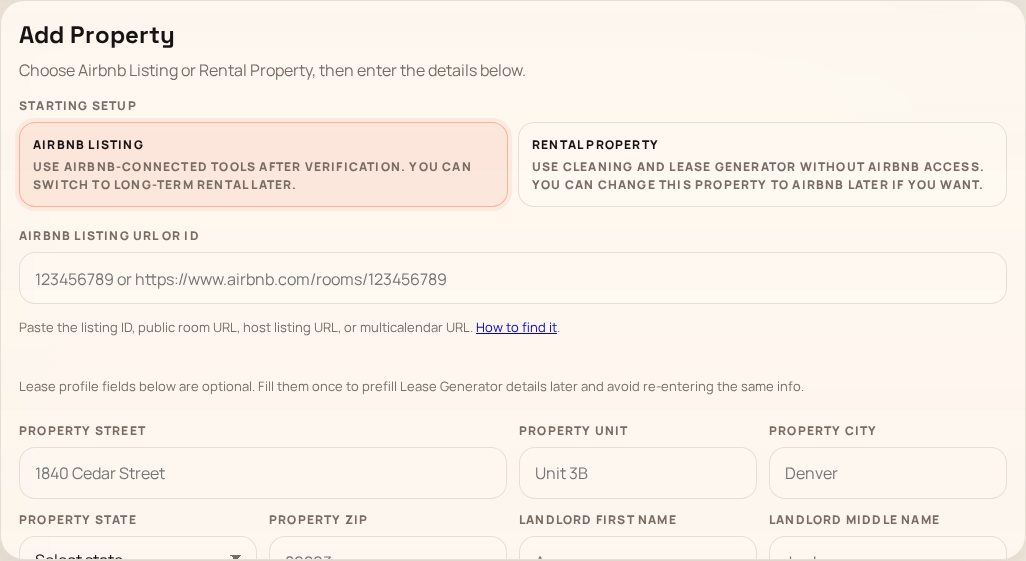
Choose the starting setup first; the form adjusts to the property type. -
Connect Airbnb with the browser extension
The browser extension is highly recommended for private Airbnb imports, calendar sync, reviewed price publishing and booking approvals. You can still view saved analysis, history and booking settings without it.
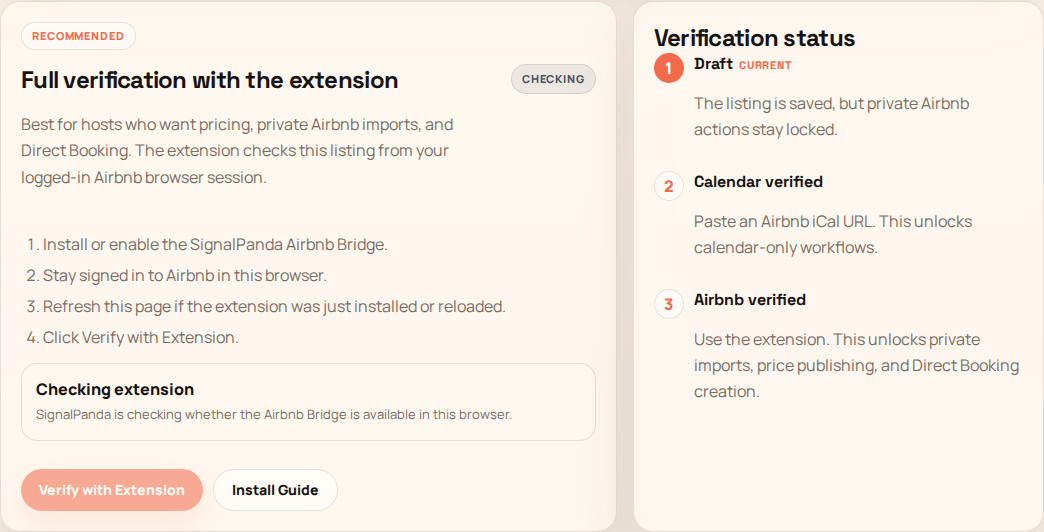
The verification page explains what each connection level unlocks. -
Check the saved property
The Properties section shows your rental properties and Airbnb listings, with labels and an Accounting link for each. Airbnb cards also show whether the connection is Draft, Calendar verified, or Airbnb verified.
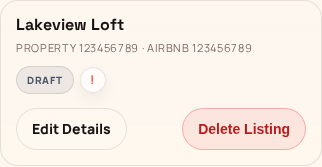
The same card contains the controls for changing or removing the property. -
Edit, replace, or remove it
Use Edit Details to update the property or saved lease information. Standard accounts currently hold one property, so delete the existing property before adding a replacement. Deleting also removes its connected Signal-Panda data and cannot be undone.
More use cases
Follow the walkthrough that matches what you need to do next. Screenshots use sample data; select an image to enlarge it.
- Start with iCal or finish Airbnb verification later
- Switch the same property between Airbnb and long-term rental
Start with iCal or finish Airbnb verification later
Use this when you are adding an Airbnb property and cannot connect the extension yet.
- In Settings, add the Airbnb listing and choose Save Listing + Verify. On the verification page, choose Use iCal for a calendar-only connection, or Skip to leave the saved property as a Draft.
- For iCal, paste the property’s Airbnb calendar export link into Airbnb iCal URL, then choose Verify iCal. Check that the property becomes Calendar verified.
- To connect later, return to the saved property in Settings. Open its ! verification disclosure and select Manage verification.
- Install and connect the extension in desktop Chrome, sign in to the matching Airbnb account, then choose Verify with Extension. Check the updated property status before starting a live import.
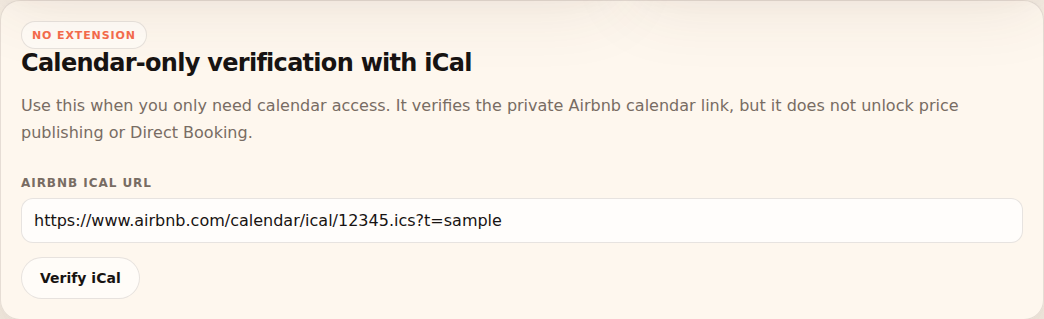
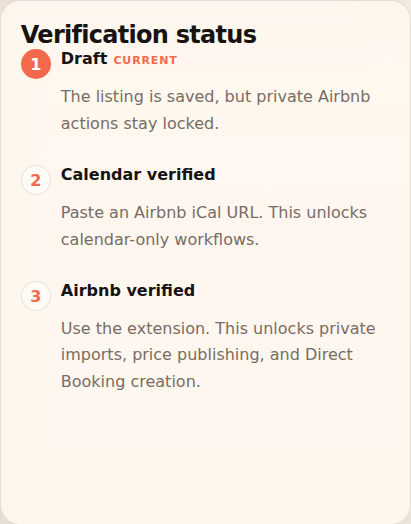
What to expect: The property stays saved while you finish setup. iCal supplies calendar availability and reservation dates; earnings imports, price publishing and booking approval still need the extension.
Rental properties can be added by name or address without an Airbnb connection. Skip leaves an Airbnb property unverified; it does not unlock verified Airbnb actions.
Switch the same property between Airbnb and long-term rental
Use this when a property’s rental use changes and you want to keep its existing records.
- Find the existing property in Settings and choose Edit Details.
- Change Current Use to Long-term rented, then select Save Details. The property remains in Accounting while its Airbnb hosting workflows are paused.
- Review any existing Airbnb reservations separately. Changing Current Use does not cancel them or block dates on Airbnb.
- When the property returns to short-term hosting, edit the same record, choose Airbnb / short-term available and save. Refresh the connected calendar and data before acting on availability or prices.
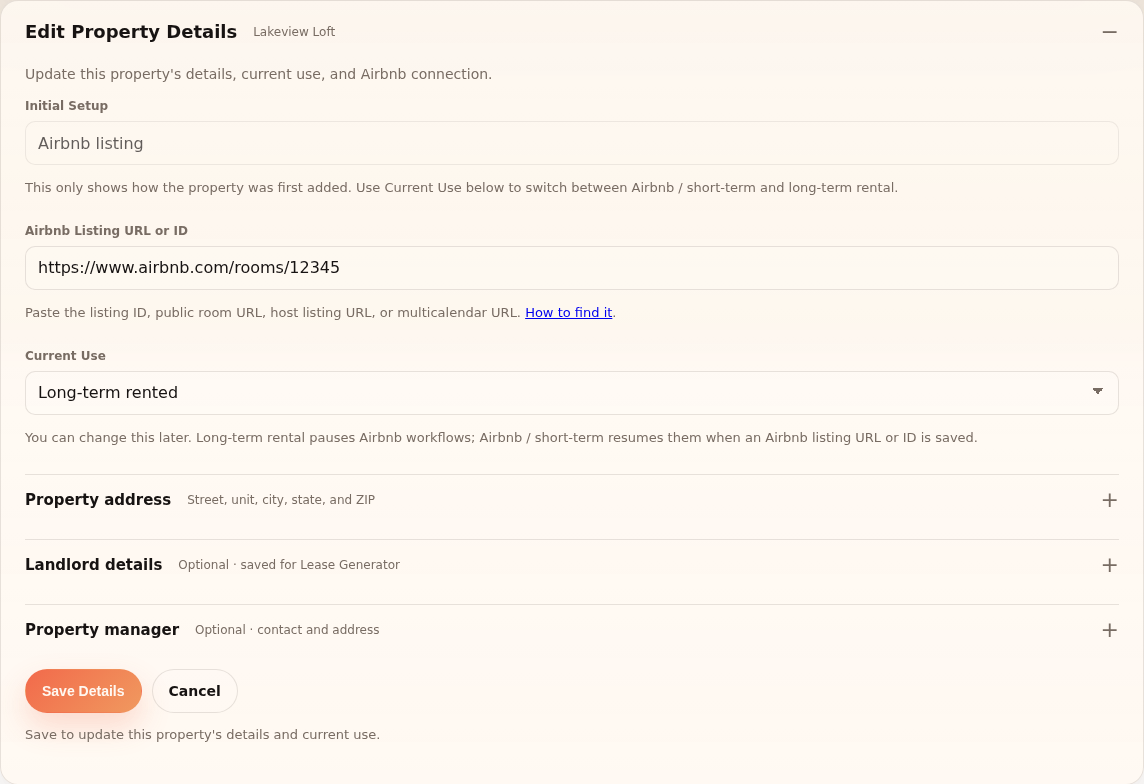
What to expect: The property keeps its Airbnb connection and saved history across the change. Direct booking pauses while it is long-term rented and resumes when its use changes back.
Use Current Use for this change. Deleting and replacing the property removes connected records and is not required to switch its rental use.
Ready? Add or edit a property. If you need the Airbnb listing number, use the listing ID guide. If setup still does not work, contact support.
Frequently asked questions
Common questions about account and property setup.
Why is the browser extension highly recommended?
The extension enables private imports, Airbnb sync and approved publishing. Saved Competitors analysis, Airbnb History and Direct Booking pages remain viewable without it; iCal provides calendar-only access.
Where can I find my Airbnb listing ID?
Use the illustrated listing ID guide, or paste the full public Airbnb listing URL into Settings.
Can I replace the saved property?
Yes. Standard accounts currently hold one property, so remove the existing property before adding its replacement. Deleting a property also removes its connected Signal-Panda data.
What is the difference between an Airbnb listing and a rental property?
An Airbnb listing can use Airbnb connections and calendar data. A rental property uses the manual property and operations workflows without requiring Airbnb.