How Cleaning works
Set up each listing once, then follow the same handoff: Signal-Panda schedules the job, the cleaner completes it in the cleaner app, and the host reviews the work and invoice.
Set up the host workspace
Use the listing menu to prepare scheduling, the crew, and the reusable instructions for every cleaning.
-
Choose how jobs are scheduled
Airbnb listings: connect the private Airbnb iCal link so reservation checkouts automatically become cleaning dates. You can connect through the SignalPanda browser extension or paste the Airbnb export link in Cleaning Settings. Use Refresh Link after calendar changes and Reset iCal only when replacing a broken or incorrect connection.
Rental properties and off-platform stays: use Add Job in the Jobs section. Manual jobs work alongside Airbnb-generated jobs, so they are also useful for direct bookings, owner stays, or an extra deep clean.
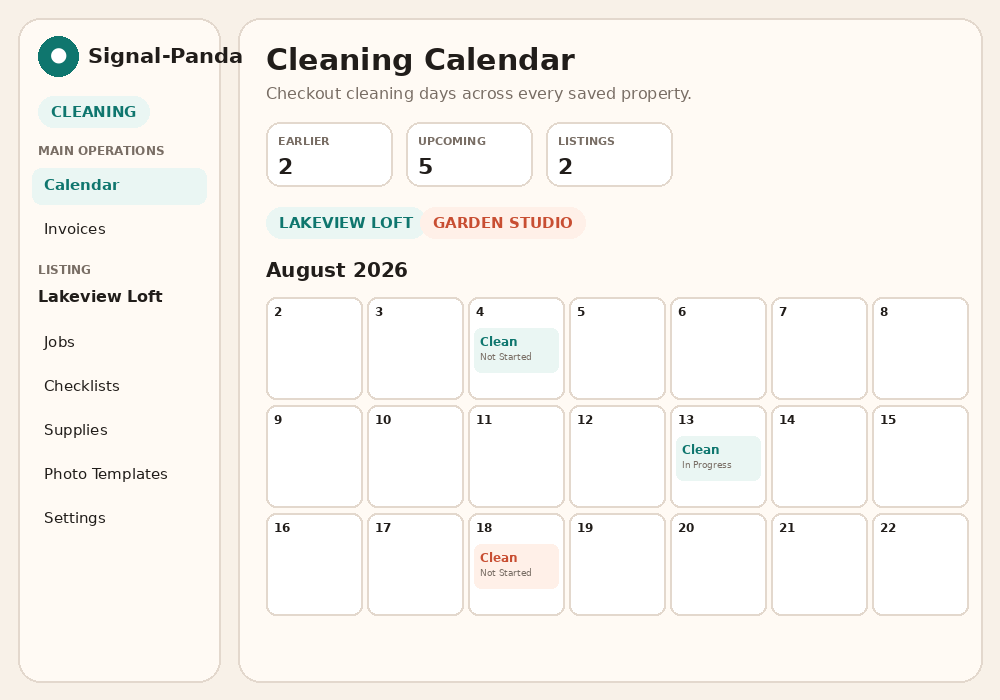
The all-listings calendar uses a color for each property; select any cleaning event to open its job details. -
Assign and verify the cleaner
Settings has three sections: Cleaner, Unit guide & access, and Scheduling. Use Edit to open a saved section; incomplete setup opens automatically. Save arrival photos and entry instructions under Unit guide & access. Cleaners open the guide with Find unit from their calendar or job.
In Cleaner, enter the cleaner or crew name, primary email, cleaning invoice amount, and preferred language. A listing has one active crew assignment at a time. Send the verification link so the cleaner can activate their cleaner account; additional verified email addresses can share the same assignment when more than one person needs access. Fee and language share one Save button; removal actions are under More.
Add the cleaning address, access code, and concise entry notes so the cleaner receives the details needed on cleaning day. You can update the invoice amount or language later. Removing a crew assignment stops future access but keeps past job logs, photos, and invoices.
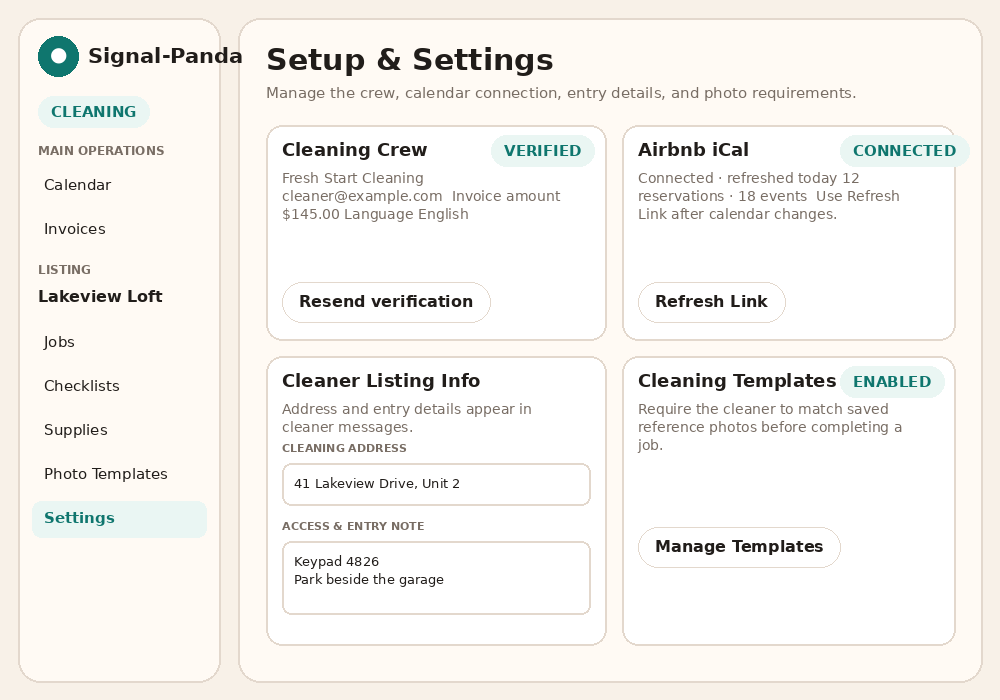
Settings groups the cleaner, unit guide and access, and scheduling for the selected listing. Required cleaning photos are configured on Photo Templates. -
Build the checklist and weekly rules
The main checklist is copied into every new cleaning job. Add tasks in the order the cleaner should see them and remove tasks that do not apply to this property. Use Weekly Rules for work that should appear only when the cleaning falls on a chosen weekday—for example, wiping outdoor furniture on Tuesday.
Changing the reusable checklist prepares future jobs. A job that has already started keeps its recorded work and progress.
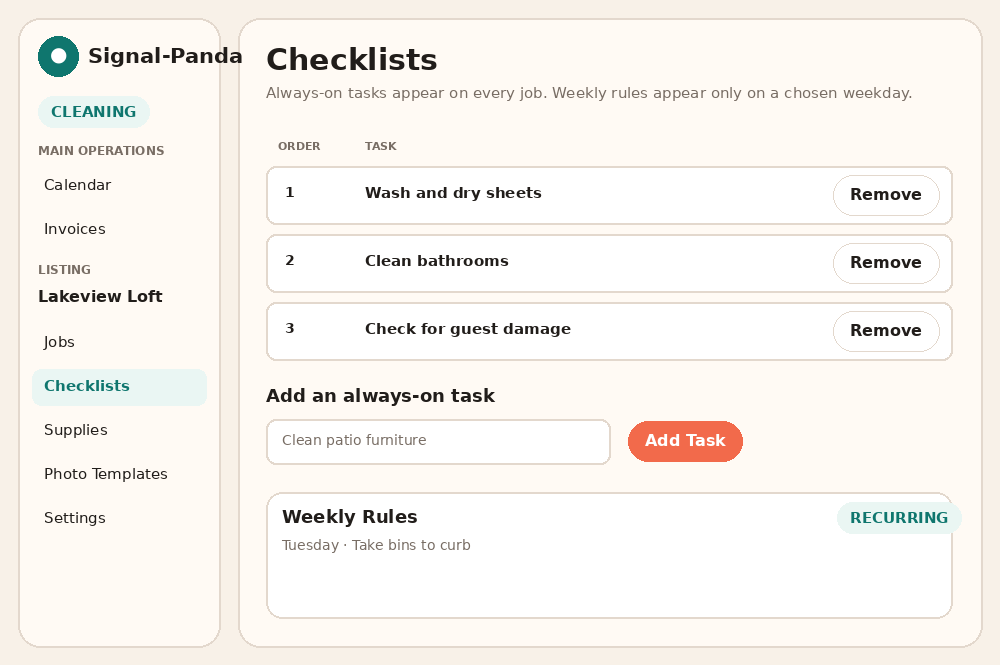
Always-on tasks form the normal turnover checklist; weekday rules add only the occasional work. Use Scheduled routines for a weekly event such as bin pickup. Choose the event weekday and the cleaning window before or after it. A routine needs doing once per event; use Change or skip one collection for a holiday change. If no cleaning falls in the window, arrange a visit separately.
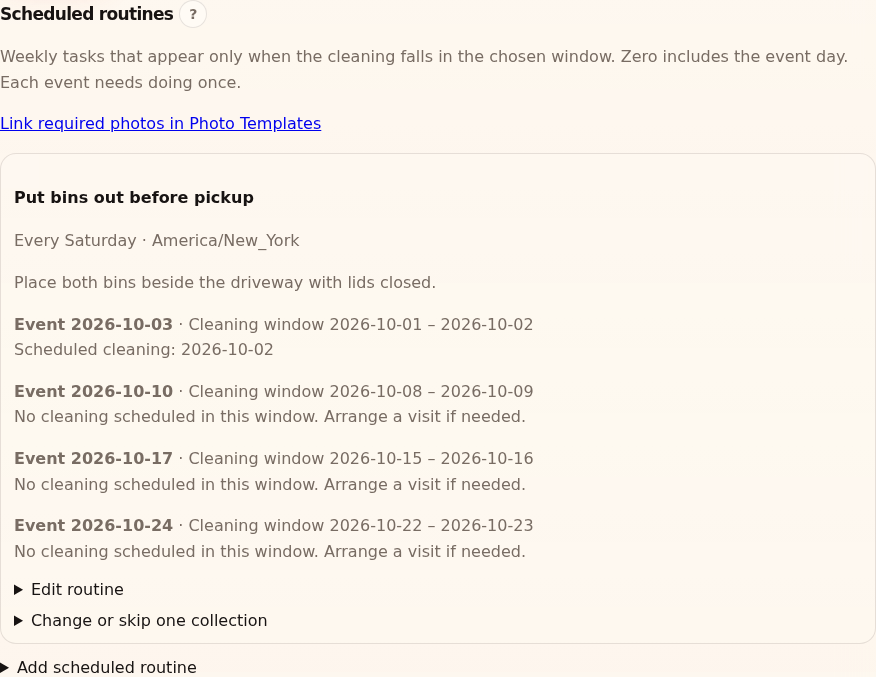
Weekly event windows keep occasional work attached to the right cleaning. -
Configure supplies and photo proof
Add the supplies the cleaner should check during every job. The cleaner only marks items that are missing or running low; those requests stay visible to the host until they are marked resolved.
Photo Templates are optional required shots. Upload a clear owner reference, give it a descriptive title, set its order, and turn on Require cleaning photos on Photo Templates, then select Save photo requirement. The cleaner must submit every required shot for that job before completing it. Framing guidance helps compare the new photo with the reference, but the match percentage is advisory rather than a pass/fail rule. Choose Every cleaning or a scheduled routine under When is this photo required?, then select Save schedule. When no required templates apply, the cleaner can add general job photos.
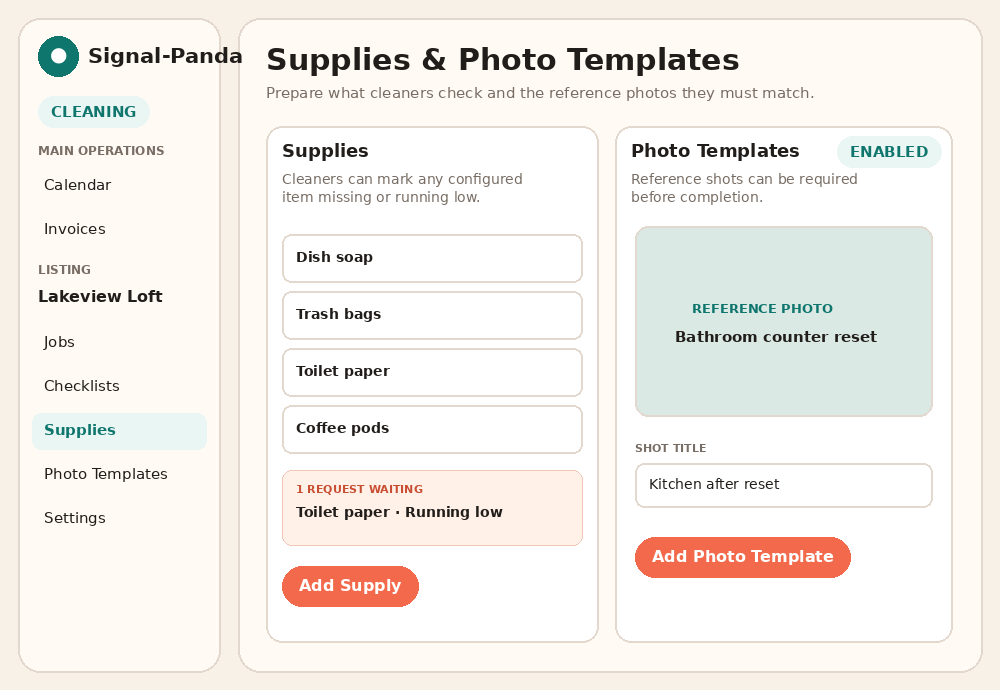
Supplies create a restock loop; photo templates create consistent, reviewable proof of the finished setup. 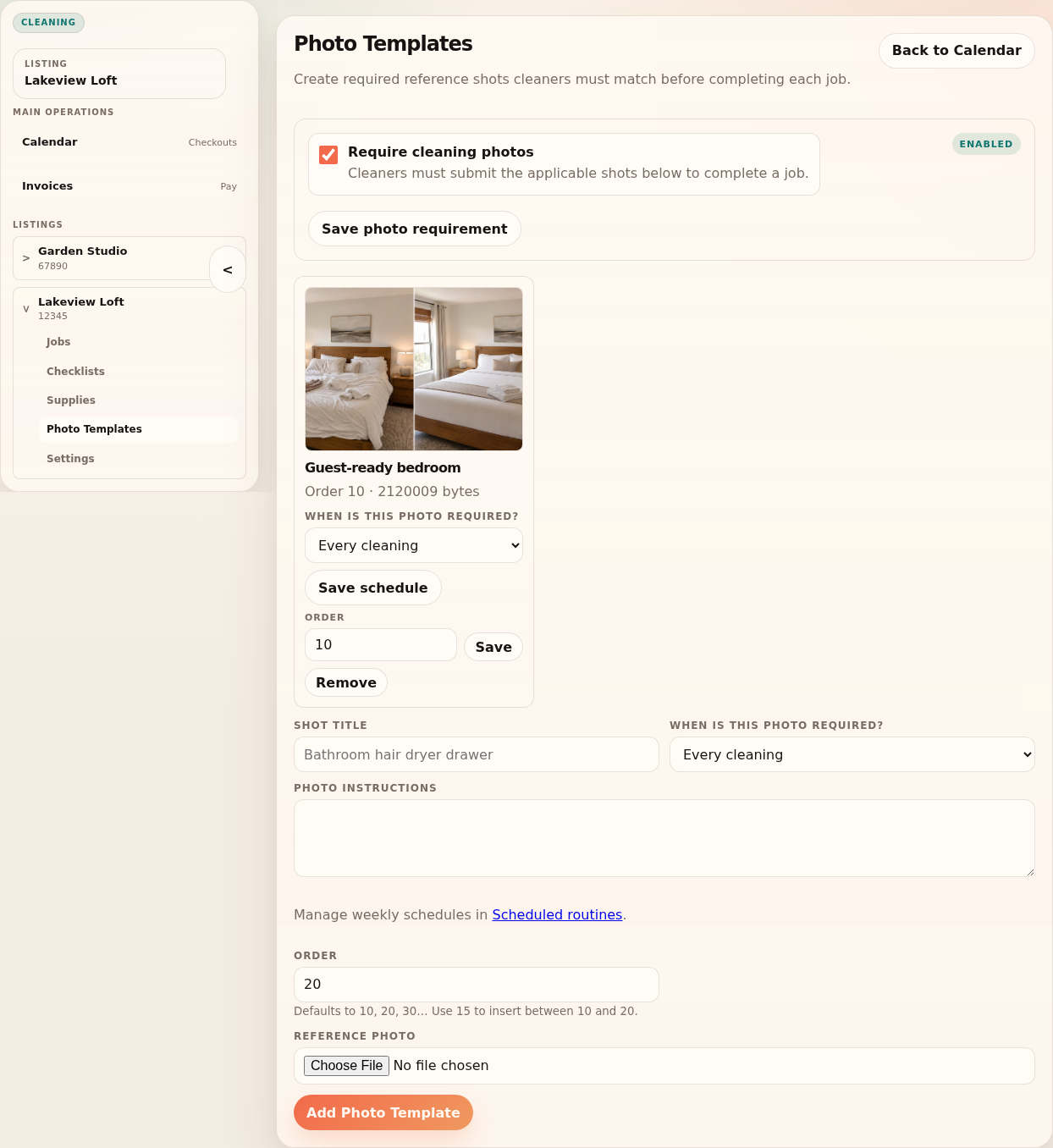
Choose whether each photo is required for every cleaning or only for a scheduled routine. -
Monitor upcoming and previous jobs
The Calendar is best for seeing every property together. The selected listing's Jobs page is best for adding one-off work, checking task readiness, seeing same-day arrivals, and opening previous cleanings. Not Started, In Progress, Complete, photo, and supply labels show what needs attention.
Removing an unfinished job hides it from owner and cleaner schedules. For an Airbnb checkout, Signal-Panda remembers the removal so the same calendar event does not immediately recreate it. When notifications are configured, verified cleaners can receive new-job and cancellation messages.
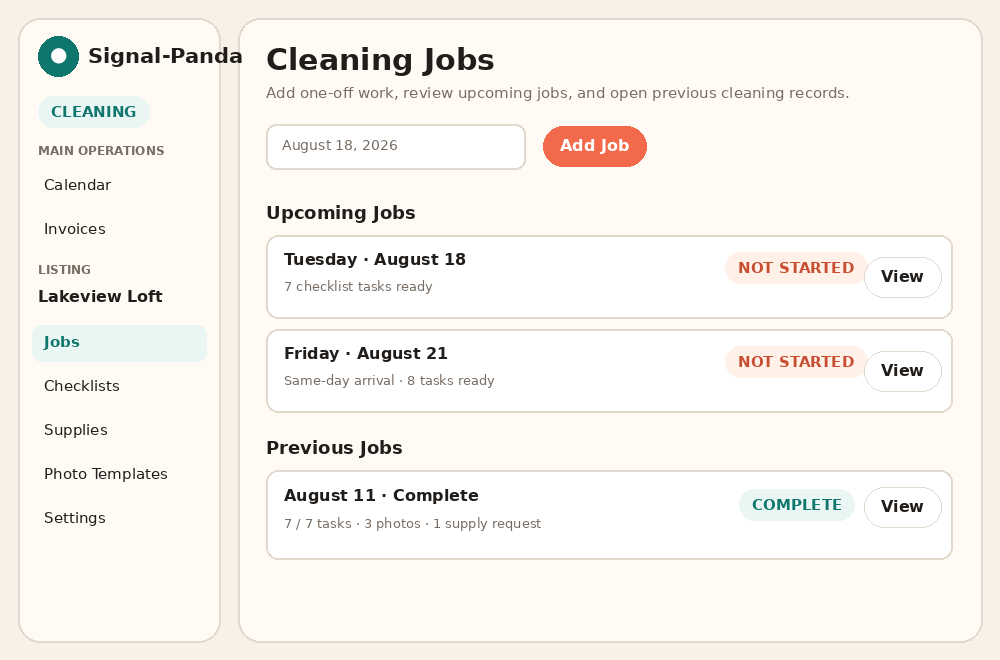
Open a job to inspect details; use Add Job for work that did not come from the connected Airbnb calendar.
Cleaner Workflow
This section shows what the cleaner sees and does before, during, and after each cleaning.
-
Open the cleaner calendar
The cleaner first opens the verification link sent by the host. After verification, they can return through a cleaning reminder/access link or request a one-time email link at Cleaner Login. The dashboard combines every assigned listing into a 30-day agenda, expandable month view, and previous-cleanings history.
Each row shows task progress, photo count, supply requests, and same-day arrival warnings. Future jobs are visible for planning but stay locked until the cleaning date. The app is available in English and Spanish.
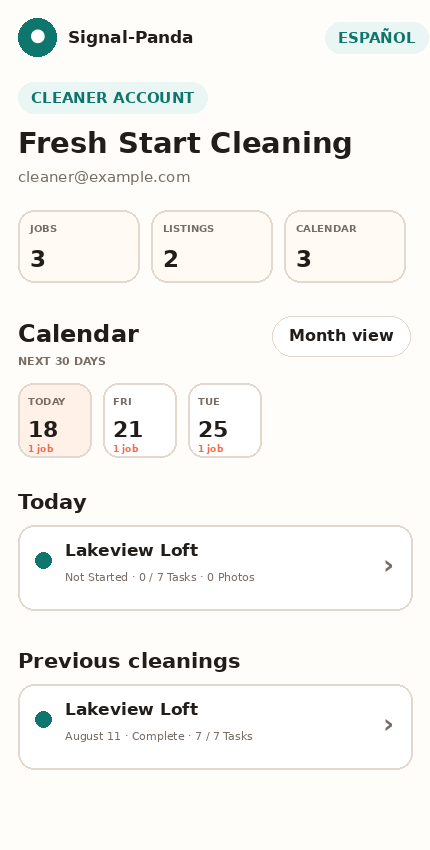
The cleaner calendar is designed for a phone and combines all verified property assignments. -
Complete the job from the phone
Open today's job and tap each checklist circle as work is completed; task progress saves automatically. Open Supplies to mark anything missing or low, add a note for the host, and submit the requested photos. Use Find unit for the saved arrival and entry guide, and the ? controls for task and photo guidance. Chosen photos upload automatically, so the cleaner should wait for the upload confirmation before leaving the page.
Complete cleaning stays locked until the checklist, remaining required photos and scheduled routines are resolved. Complete each routine or report why it cannot be done; a problem report clears that routine’s photo requirements for this job. The cleaner sees a final confirmation before submitting. Job access remains available through the following day so a late checkout-day submission can still be completed.
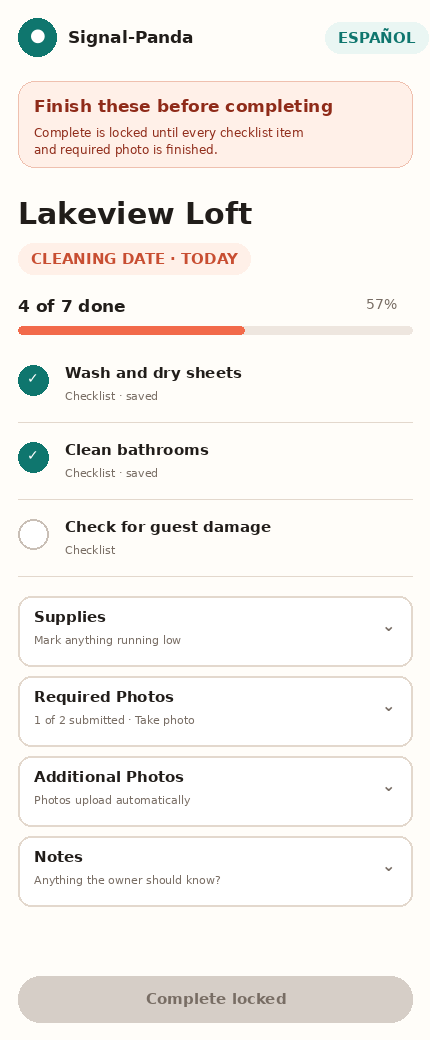
Tasks left and Photos left show the remaining work; Continue checklist leads back to unfinished tasks. 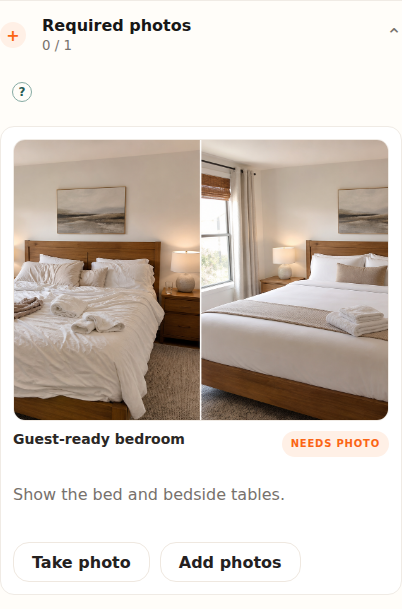
Open Required photos to see each reference and choose its matching job photo.
Review the work and invoices
After the cleaner submits, the host has a permanent job record and a payment checklist.
-
Inspect completion details
Open the completed job to review task-by-task progress, cleaner notes, private photo proof, required-photo comparisons, timestamps, and supply requests. Resolve a supply request after restocking it; the original request remains part of the job history.
If a cleaner cannot submit, the host can use Submit for Cleaner on an unfinished owner job after confirming the work is complete. This closes the job and creates the same invoice record.
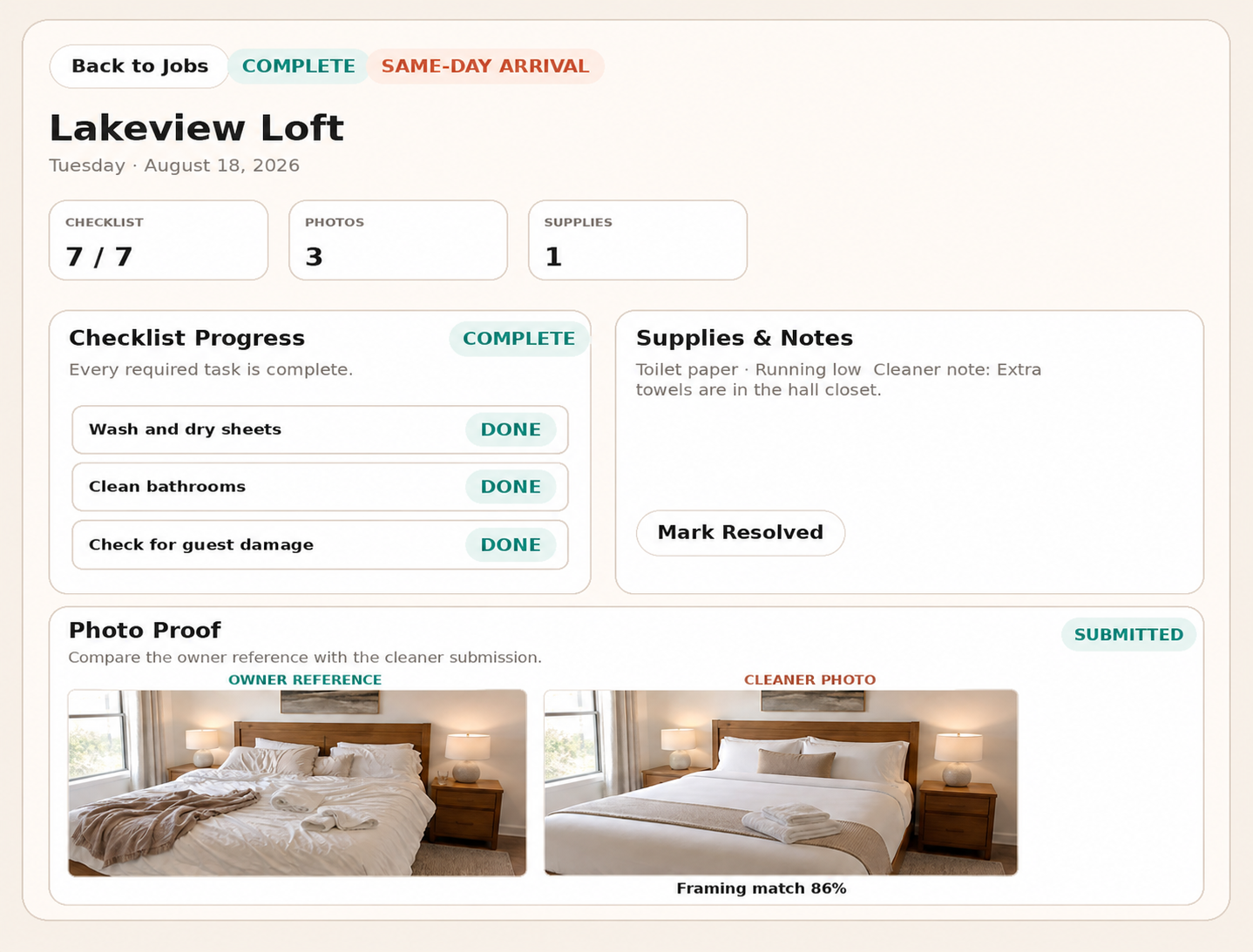
The before and after photos appear together inside Photo Proof so the host can compare the owner reference with the cleaner submission. -
Track what is owed
A completed cleaning creates an unpaid invoice using the amount saved on the crew assignment. In Invoices, filter by listing or status, edit an individual amount when needed, add a payment note, mark one invoice paid, or use Pay All. A paid invoice can be returned to unpaid if it was marked accidentally.
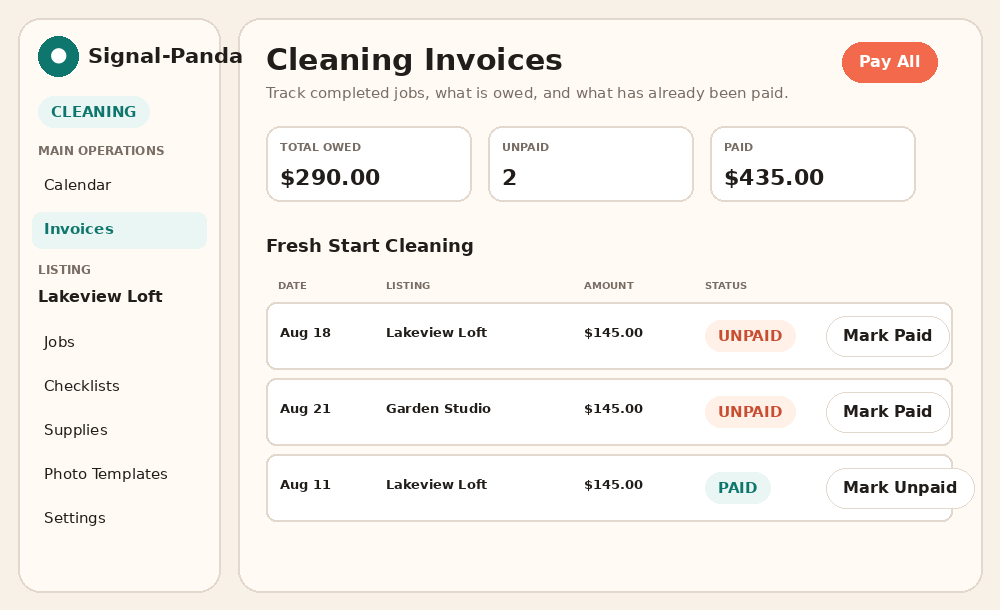
Invoices are operational records inside Signal-Panda; marking one paid records the payment rather than sending money.
More use cases
Follow the walkthrough that matches what you need to do next. Screenshots use sample data; select an image to enlarge it.
- Complete a scheduled routine or report a problem
- Finish required photos when the camera or upload fails
- Check cleaning jobs after a reservation changes or is cancelled
Complete a scheduled routine or report a problem
Use this when a cleaner’s job includes an event routine, such as putting bins out for collection.
- Open the job in the cleaner app and read Scheduled routines, including the event date and instructions. If it says Already completed during another cleaning, that event does not need repeating.
- Perform the routine. If it requires photos, follow its required-photo link and upload all linked proof. Choose Mark done once it is enabled, then check for Completed for this event.
- If the routine cannot be done, expand Unable to complete / report a problem. Enter a specific Reason (visible to the host) and select Report problem. Check for Problem reported.
- Finish the job’s remaining checklist and photo requirements before selecting Complete cleaning. The host can review the routine result and any reported problem.
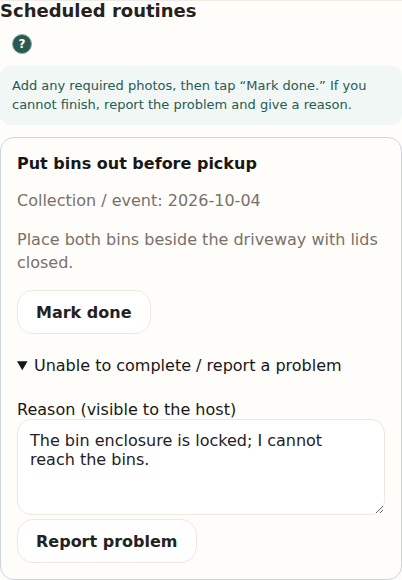
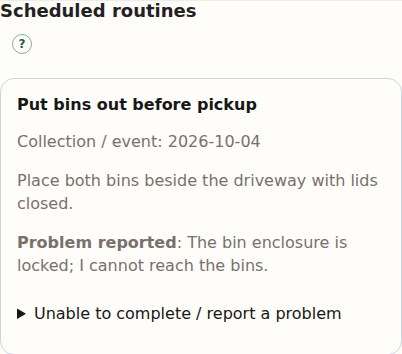
Example: If the bin enclosure is locked, report that reason instead of marking the routine done. The host can see why the task needs attention.
What to expect: A successful routine completes that event. A problem report clears its blocker for this job only; it does not claim success or excuse later eligible cleanings.
Finish required photos when the camera or upload fails
Use this when a photo requirement is still incomplete after trying to capture it.
- Open Required photos on the job, choose the required view and select Take photo. Allow camera access when requested.
- If camera access is blocked, fix the browser’s camera permission and select Try camera again, or use Choose photo to upload an existing image of the required view.
- Wait for Photo submitted. A captured preview is not proof that the upload finished. If an upload fails, retry it or choose a smaller file that meets the displayed requirements.
- Check the remaining required views. Use Retake photo if a submitted image needs replacing, then finish the other job requirements and confirm Complete cleaning.
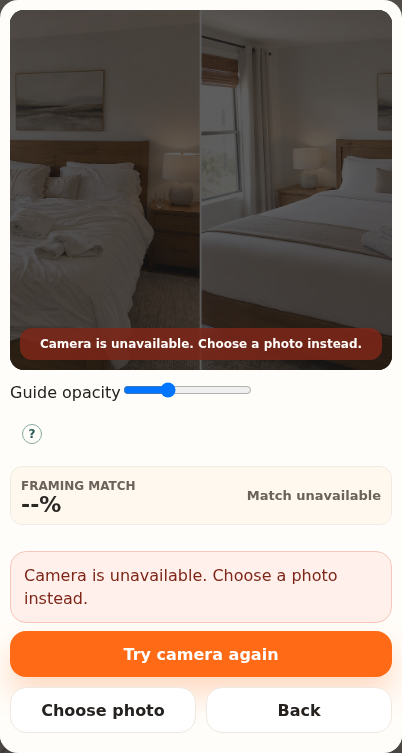
What to expect: Saved required photos count toward completion. The framing score is guidance; the saved upload and required-photo status determine whether the photo requirement is finished.
Check cleaning jobs after a reservation changes or is cancelled
Use this when an Airbnb checkout moves, disappears, or is booked again.
- Select the property and open Cleaning Settings → Airbnb iCal. Choose Refresh Link and check whether the feed refreshed successfully.
- Review Calendar and Jobs for the old and new checkout dates. Scheduled calendar updates reconcile future jobs and notify cleaners; the refresh button alone does not promise an immediate cancellation email.
- For a moved checkout, check that the old future job is cancelled and the replacement date is present after reconciliation. If the same checkout date is booked again, an incomplete cancelled job can be restored with its existing progress and photos.
- If refresh failed, resolve the feed error and check again before creating duplicate manual work. Today’s and past jobs are retained when a stay disappears from the feed; check their status before making other arrangements with the cleaner.
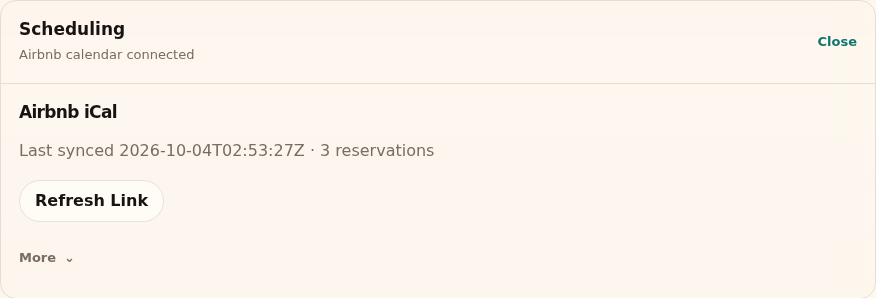
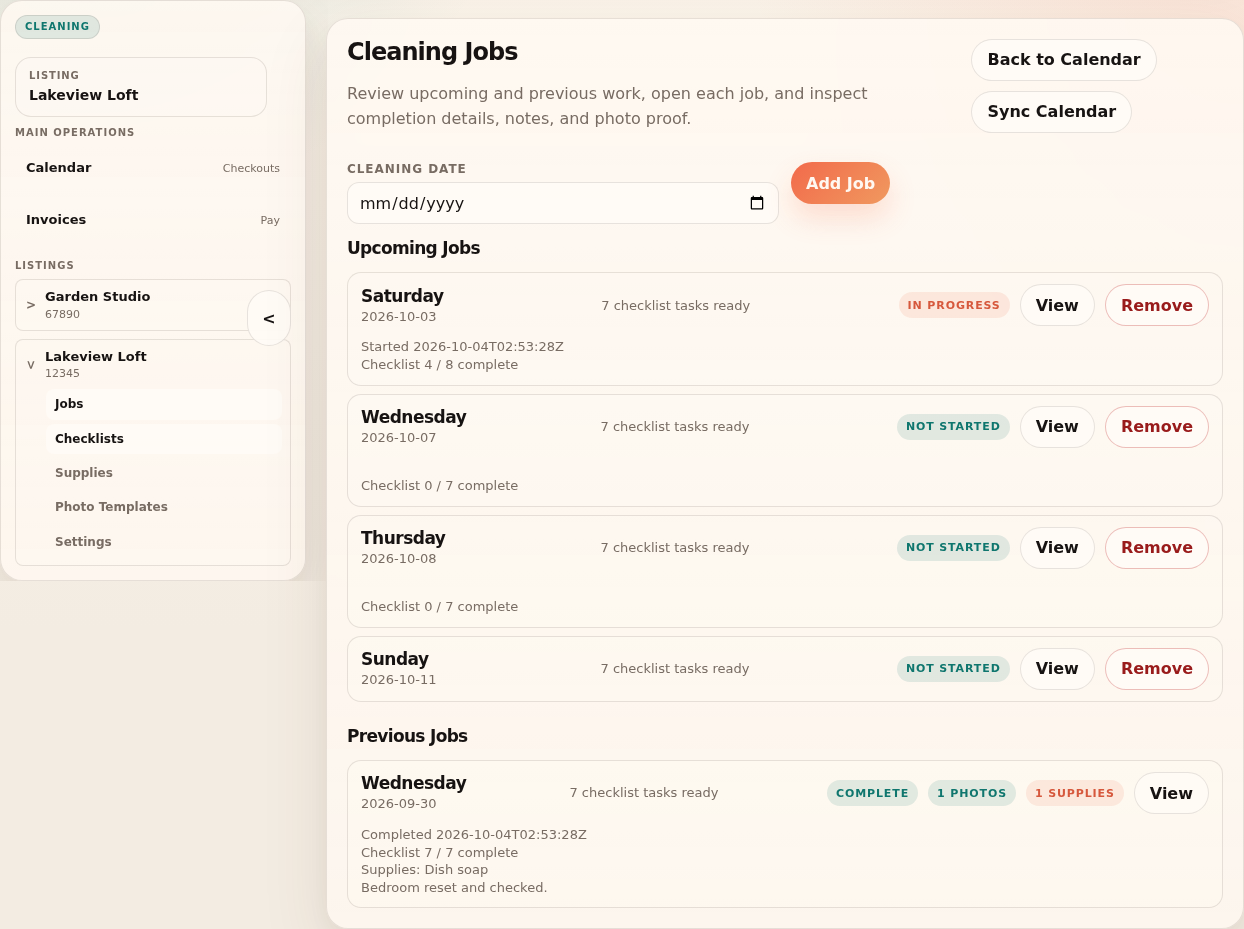
What to expect: Future work follows the successfully refreshed calendar. A failed refresh preserves the last successful feed rather than treating all reservations as cancelled.
Start in the Cleaning Calendar. Add a property in Settings, or open Cleaner Login if you are a verified cleaner. For setup problems, contact support.
Frequently asked questions
Common questions about cleaning setup and job completion.
Why does no property appear in Cleaning?
Add the Airbnb listing or rental property in Settings, then return to the Cleaning Calendar.
What should I do when a checkout is missing?
Refresh the saved Airbnb iCal connection. If the stay is off-platform, add a manual job from the selected listing's Jobs page.
Why can’t the cleaner sign in?
Confirm the cleaner's email is assigned and verified, resend the verification link, or have the cleaner request a fresh one-time link at Cleaner Login.
Why is Complete cleaning locked?
Finish every checklist item, submit all remaining required photos, and wait for active photo uploads to finish. Complete each scheduled routine or report why it cannot be done; reporting a problem clears that routine’s photo requirements for this job. See the routine walkthrough.
What happens when I replace the cleaning crew?
Remove the current assignment and add the replacement. Existing job records, photos, supply requests, and invoices remain intact.
How do I clear a supply request?
Open the job or selected listing's Supplies page and mark the request resolved after restocking it. You can include a short resolution note.