How Airbnb History works
Before you start: Add an Airbnb listing in Settings. Saved history is available on desktop and mobile without the extension. To download new data, connect the current Airbnb Bridge extension and sign in to Airbnb in the same desktop Chrome profile.
Screenshots use sample data. Select any image to enlarge it.
Choose what to view
Open Airbnb History. Choose one property, several properties, or All listings, choose the year, and select Show. If more than one currency is available, choose one; currencies are kept separate.
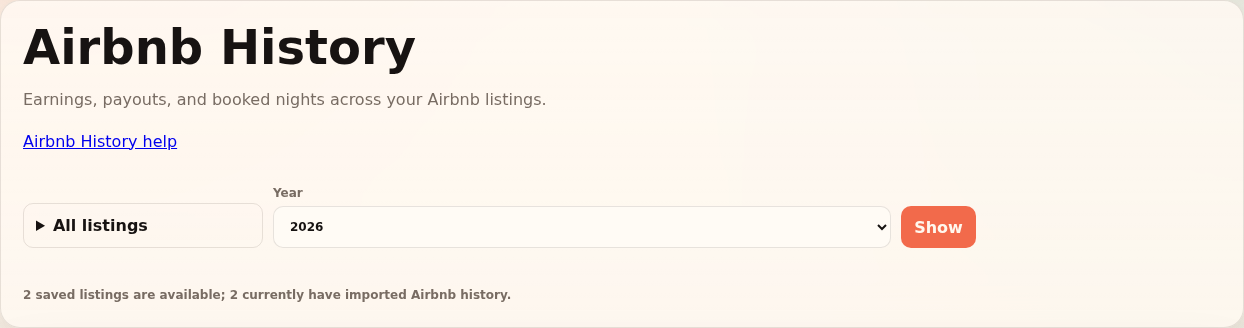
Choose the properties and year, then select Show. Example · compare two properties - Listings
- Lakeview Loft + Garden Studio
- Year / currency
- 2026 / USD
The overview combines the latest saved import for each selected property. A missing-history notice means the totals are incomplete.
Sync your Airbnb data
Expand Sync & import status. With one listing selected, choose Sync From Airbnb; use Sync all listings to update every saved Airbnb listing, regardless of the viewing filter.
Wait for the extension to connect and the buttons to become available. The sync imports paid and upcoming earnings plus calendars; it does not publish prices or change reservations.
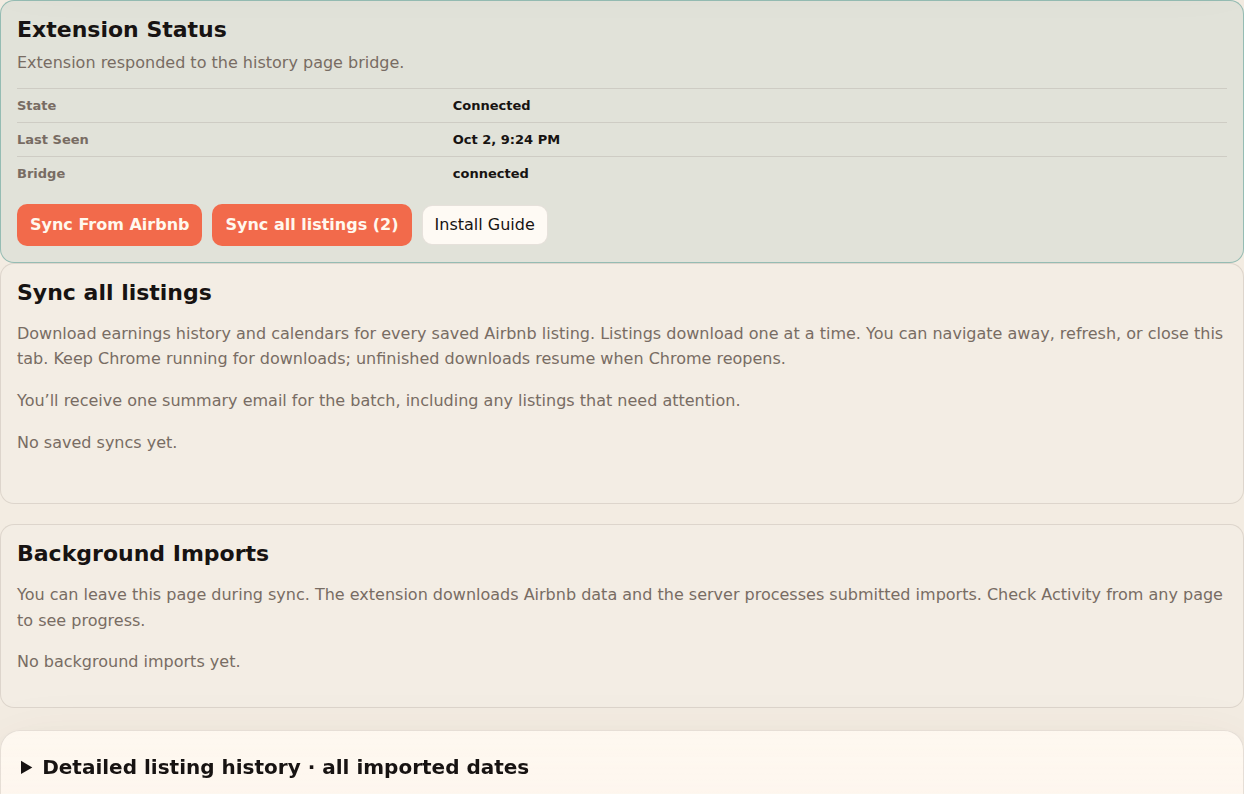
Connected status makes the sync controls available. Follow progress in Activity
Open Activity to follow downloads and imports. You can navigate away or close the app tab. Keep Chrome running; closing Chrome pauses downloads until it reopens.
Use Stop after current listing to pause a batch, or Retry unfinished listings after resolving a problem. If Airbnb asks you to sign in, do so in the same browser profile. A failed or partial earnings download keeps the previous saved import.
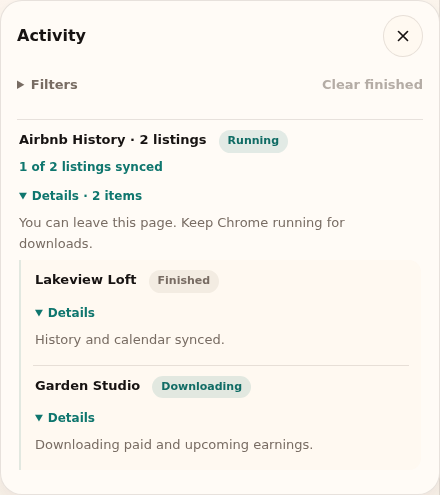
Activity shows progress for each property while the sync continues. Read the results
Stay earnings estimates net income across occupied nights. Payouts uses imported transaction dates, which may be estimated. These are two views of the same money, so do not add them together.
Tap or hover over a month for amounts, or focus the chart and use the arrow keys. Open Monthly figures for the table. Select a listing for its detailed history. Future earnings belong in Accounting Projections, not the historical overview.
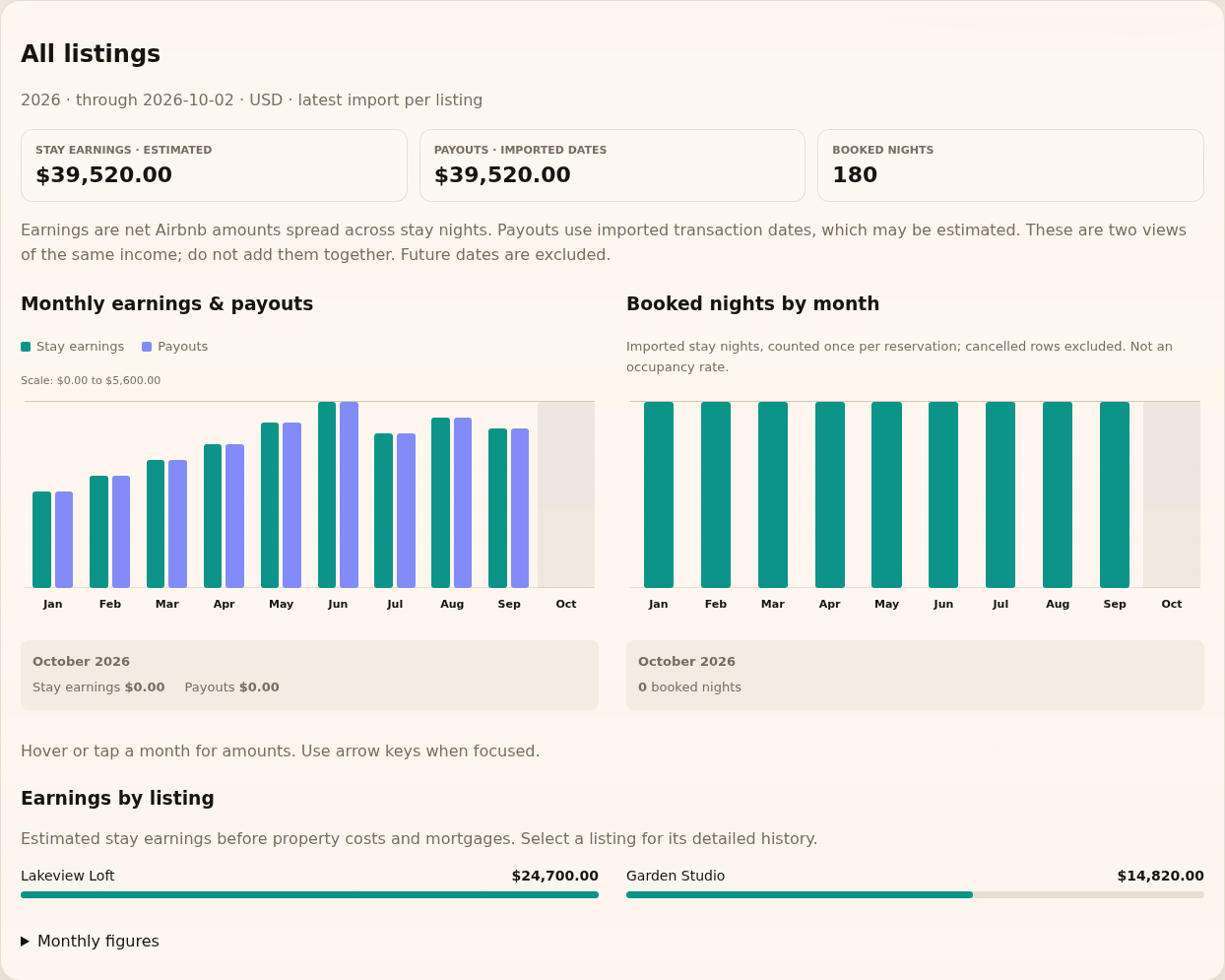
Read the monthly charts, then select a listing for its details. Example · one stay, two ways to read it A $1,000 net stay runs January 27–February 6: ten nights. Its imported payout date is March 3.
- Stay earnings · January
- $500
- Stay earnings · February
- $500
- Payouts · March
- $1,000
The total income is still $1,000. The stay split is an estimate, not the actual price of each night.
More use cases
Follow the walkthrough that matches what you need to do next. Screenshots use sample data; select an image to enlarge it.
Understand booking lead times and nightly earnings
Use this when a portfolio total raises a question about one property.
- In Airbnb History, select only that property and choose Show. Check the year and currency for the overview.
- Expand Detailed listing history · all imported dates. Its scope is all dates in the latest import, so it can differ from the selected year’s overview.
- Read Lead Time and the booking-window table to compare last-minute bookings with reservations made further ahead. Lead time needs both a booking date and a check-in date.
- Use View Price History Graph and All Historical Points to inspect the underlying stays. Compare the dates and amounts before drawing a conclusion from an average.
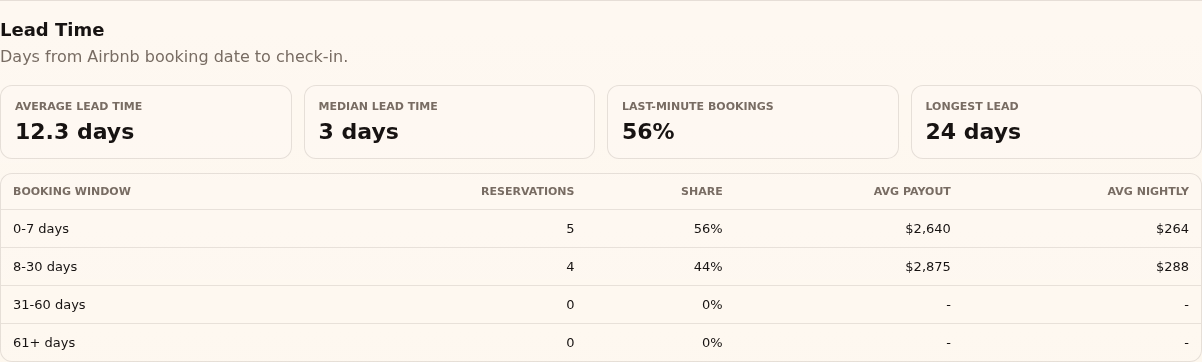
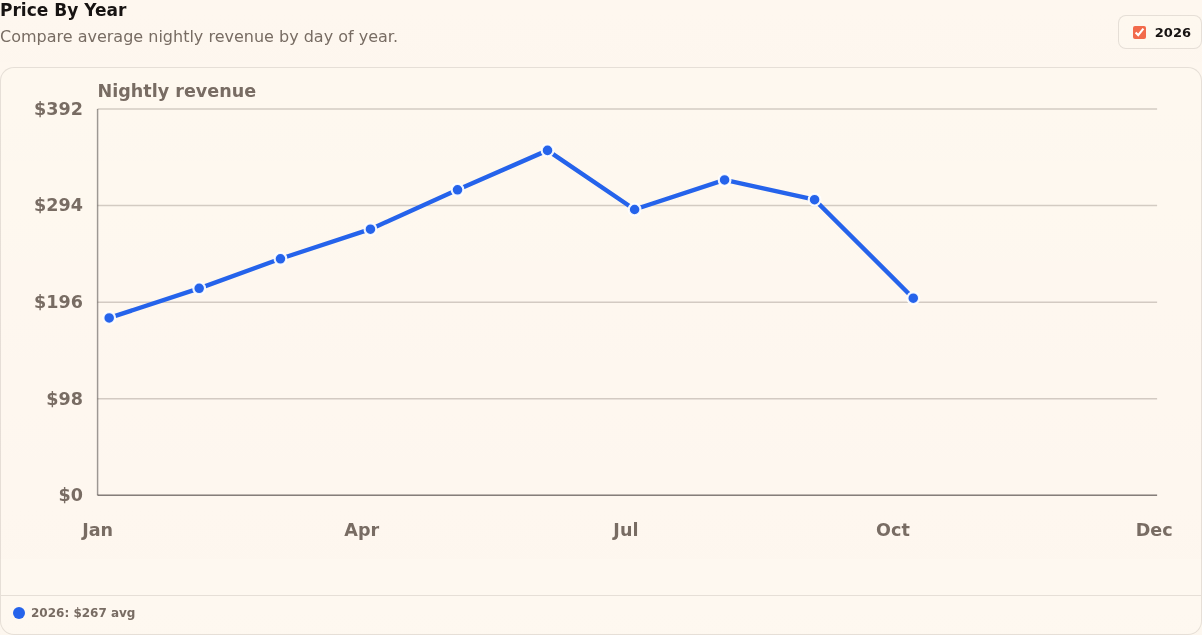
Example: If many reservations arrive within a week of check-in, compare their nightly earnings with bookings made earlier. Missing booking dates leave gaps in lead-time results.
What to expect: You can explain the property’s booking pattern using its saved records, without starting another sync.
Nightly revenue is an average from imported earnings and stay nights, not the guest’s full payment or a nightly price breakdown.
Finish a sync when some properties need attention
Use this after an interrupted download, expired Airbnb sign-in, or a partially successful batch.
- Open Activity and inspect each property’s download and import result. A finished calendar import does not mean its earnings import also succeeded.
- Reopen Chrome if it was closed. If sign-in is requested, sign in to Airbnb in the same Chrome profile that started the sync; return to an authenticated Signal-Panda page if app authorization needs renewing.
- Once the reported problem is resolved, return to Airbnb History and expand Sync & import status. Choose Retry unfinished listings when offered. To pause a running batch deliberately, use Stop after current listing.
- Wait for the imports to finish, then use View updated results when shown or reload the history view. Check any missing-history notice before comparing totals.
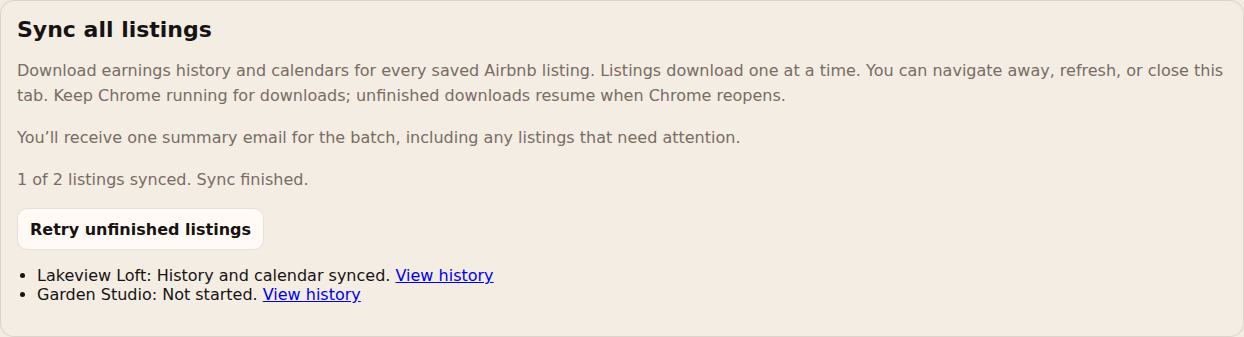
Example: If two properties finish and the third needs Airbnb sign-in, resolve sign-in and retry the unfinished property. The two successful imports remain saved.
What to expect: Finished work is retained. A failed or partial earnings download keeps the previous saved import until a complete replacement succeeds.
Frequently asked questions
Why is the sync button disabled?
Open extension setup, install or update the extension, and reload Airbnb History in the same Chrome profile. History sync needs version 0.1.16 or later. If another operation is running, check Activity first.
Why is the chart empty?
Check the selected properties, year and currency, then the latest import status. Future dates are excluded. Viewing a chart reads saved data; it does not start a new sync.
Are payouts proof of a bank deposit?
No. They follow dates imported from Airbnb. Check your bank records to confirm receipt. Use Accounting to include property costs and mortgages.