How Direct Booking works
Before you start: Start with a saved Airbnb listing verified through the extension or iCal. Saved booking pages and settings are available without the extension. Host approval and Airbnb calendar verification need the Airbnb Bridge extension in desktop Chrome. Guests can use your booking page without it.
Screenshots use sample data. Select any image to enlarge it.
Host: create your booking page
Open Direct Booking, find the property, and choose a unique subdomain: 3–63 letters, numbers or hyphens. Add your Zelle email or phone, check the URL preview, and select Create.
Use Open Booking Site to review the guest page. The displayed booking link and printable QR card let you share it with guests.
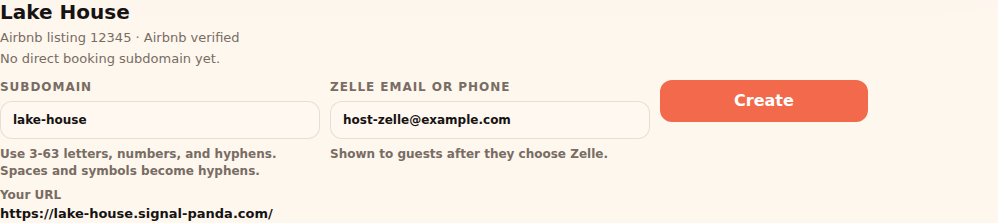
Check the booking URL and Zelle recipient before selecting Create. Host: save the price and policies
Under Booking price and policies, enter the host name, cleaning and other mandatory fees, tax rate, refundable deposit, and cancellation/refund policy. Include a deposit policy if you charge a deposit.
Confirm that all mandatory charges are included, then select Save booking price and policies. Amounts are in USD. New requests require these settings and a Zelle recipient.
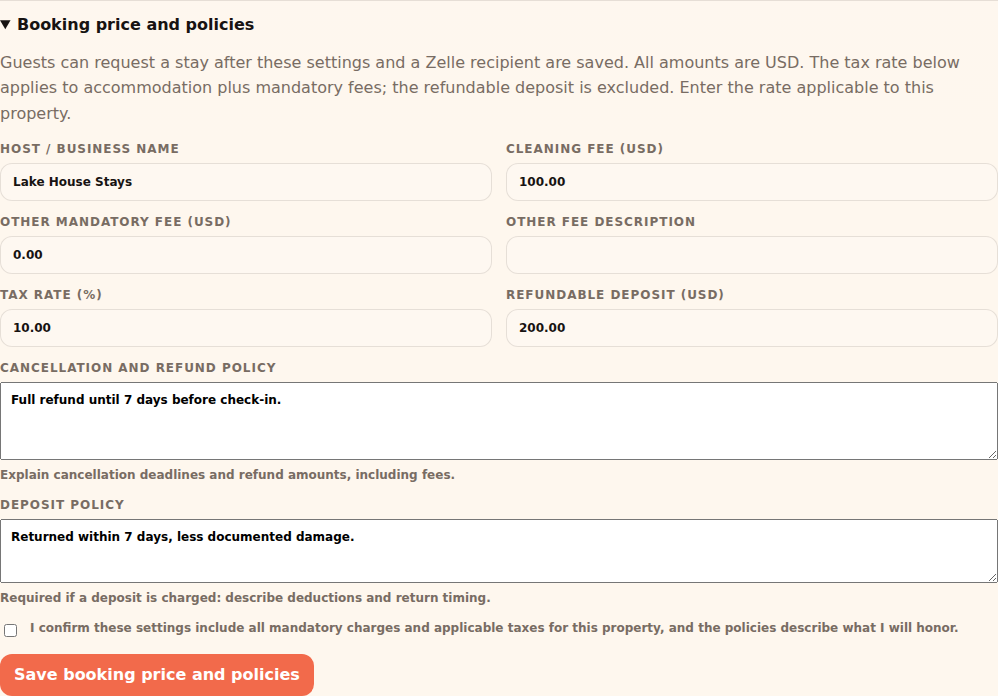
Save all charges and policies before accepting guest requests. Example · a guest’s itemized total - Accommodation · 3 nights
- $600
- Cleaning fee
- $100
- Tax · illustrative 10%
- $70
- Refundable deposit
- $200
- Total payment
- $970
This example applies tax to accommodation plus mandatory fees, excluding the deposit. Enter the rate that applies to your property.
Guest: choose dates and enter details
The guest opens your shared booking link or scans the QR code. They choose available check-in and check-out dates on the calendar, or enter them in the date fields.
They add their Name, Email and an optional Note, then select Review price. Booking updates go to this email address. No payment is due at this step.
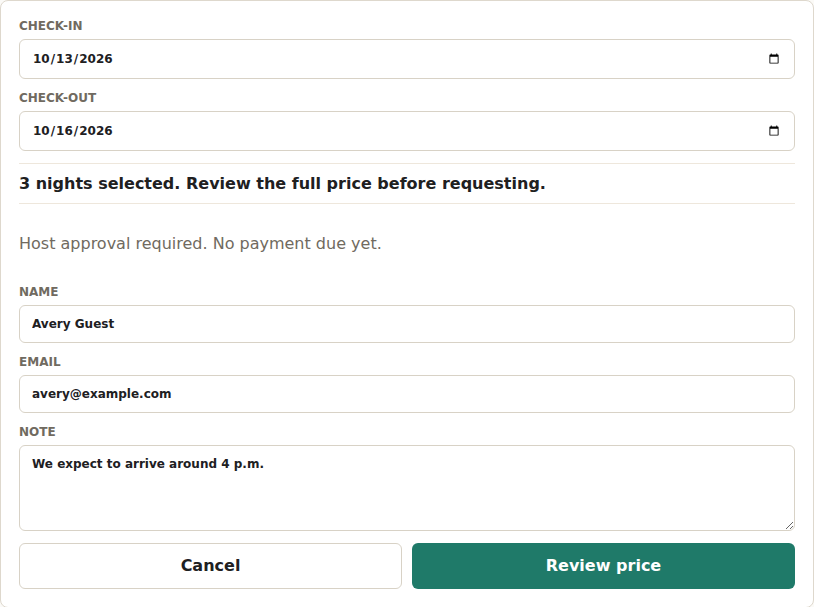
The guest enters dates and contact details on your public booking page. Guest: review the price and request
On Review your request, the guest checks the dates, accommodation, fees, tax, deposit and total. They read the cancellation and deposit policies, open the linked terms, and tick the agreement checkbox. Request to book becomes available after they accept.
They select Request to book to send the request, or Change dates or details to go back. Quotes expire after 15 minutes; changed prices or policies require another review.
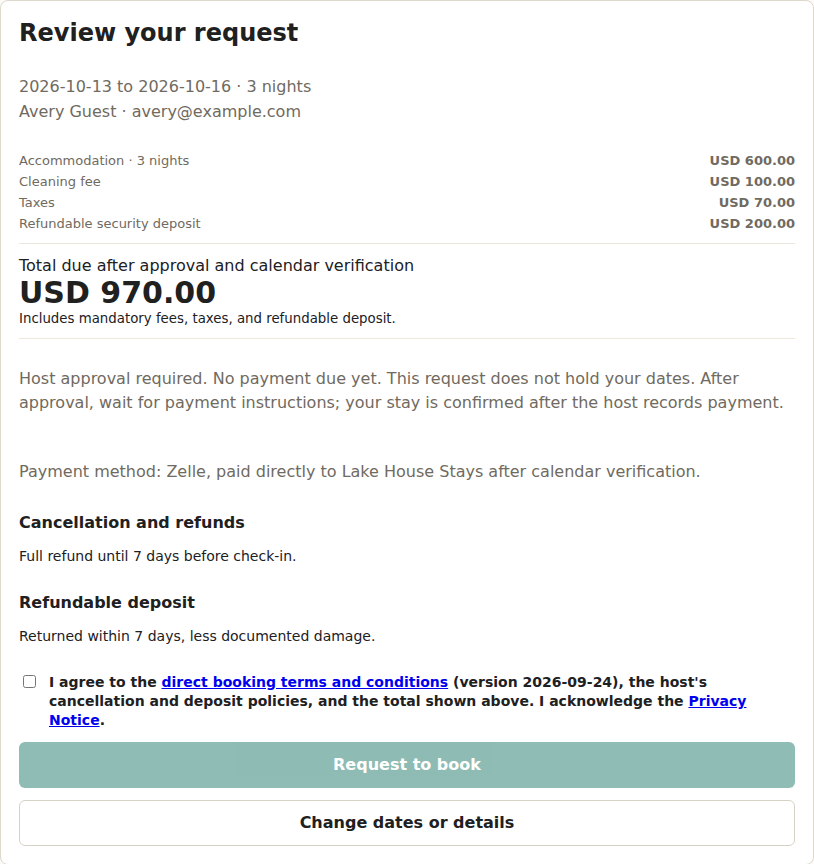
The guest reviews the full price and terms before requesting a stay. Guest: wait for host approval
The page shows Request sent, and the guest receives a Booking request received email with a copy of the accepted terms. You receive a separate email to review the request.
Pending requests do not hold the dates, and no payment is due. The guest follows later updates by email. If you decline, they receive Booking request declined.
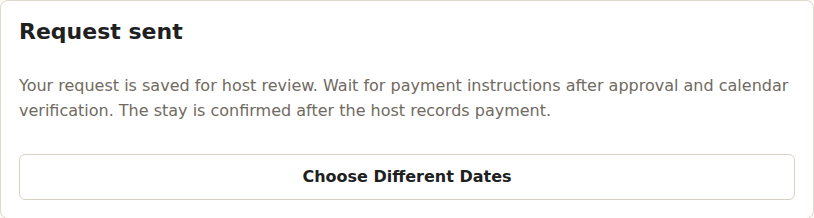
Request sent means the host will review it; the stay is not yet confirmed. Host: approve and secure the dates
Open the request from the host email or Notifications. Review dates, guest details and accepted terms, then choose Approve request or Decline request.
Approval checks fresh Airbnb availability, holds the dates in Signal-Panda, and attempts to block them on Airbnb. Wait for the Airbnb block to be verified before asking the guest to pay. If it fails, use Open Airbnb calendar to check or block the dates, then Verify / retry Airbnb calendar block.
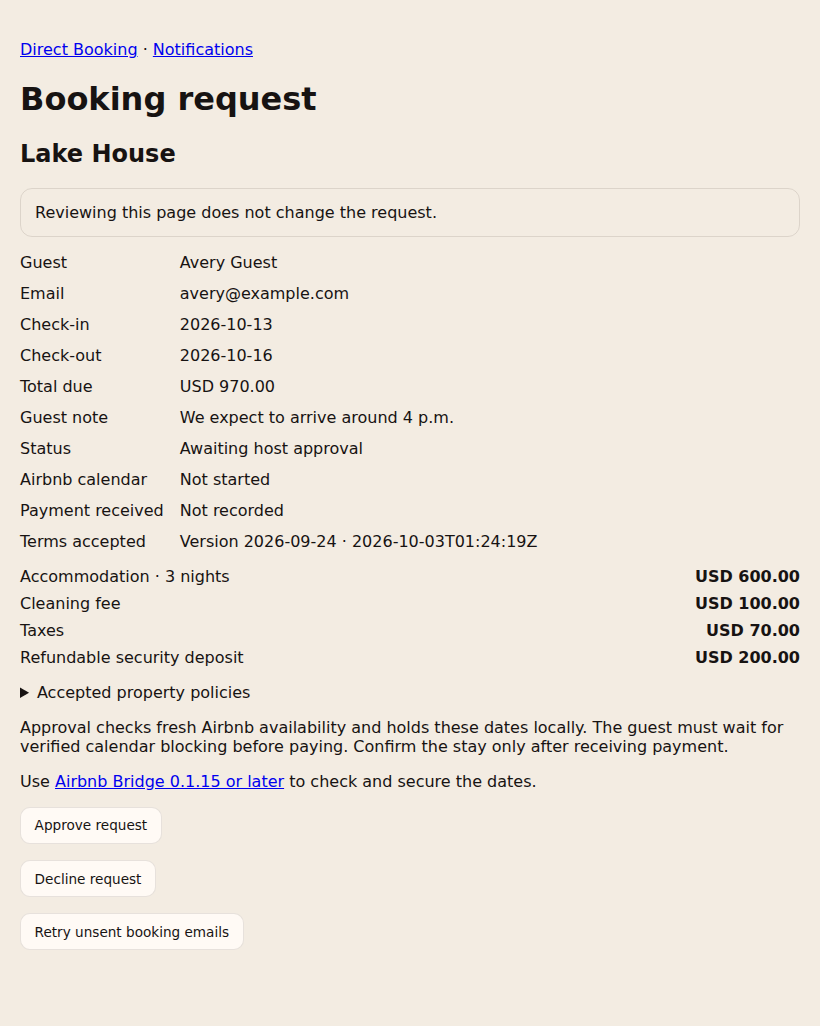
Review the request before choosing Approve request or Decline request. Example · a three-night stay - Check-in / checkout
- October 9 / October 12
- Nights to block
- October 9, 10 and 11
- After approval
- Awaiting payment
Checkout day is not a booked night. Approval alone does not confirm the stay.
Guest: follow the payment email
The first approval email, Booking approved — securing your dates, tells the guest to wait. Once the Airbnb block is verified, Booking approved — ready for payment gives the total and your Zelle email or phone.
The guest sends that amount through their own bank or Zelle app. In this example, they send $970 to the recipient in the email. Sending payment alone does not confirm the stay; you must record its receipt.
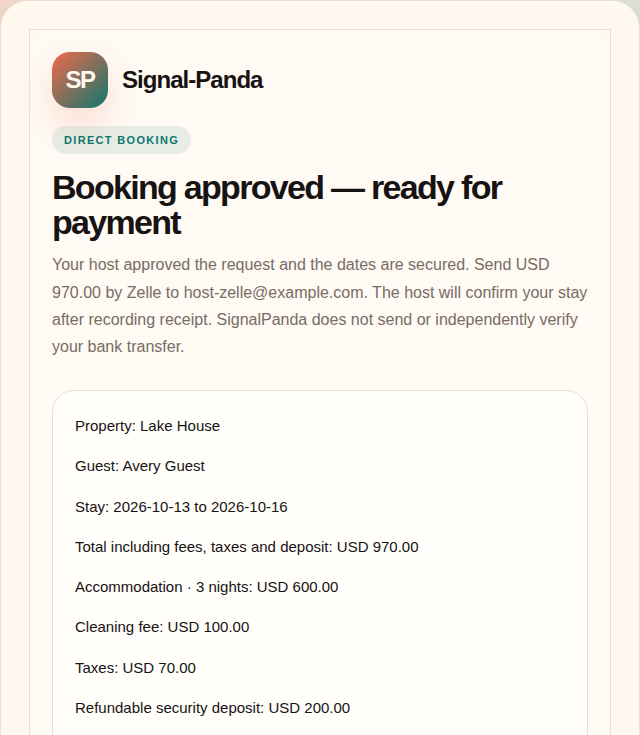
Payment email excerpt: the guest gets the amount and Zelle recipient after the dates are secured. Host: record payment and confirm
After the Airbnb block is verified, the guest receives payment instructions. Check that you received the full amount, tick the payment acknowledgment, then select Record payment and confirm stay. The guest receives final confirmation.
Signal-Panda records your confirmation; it does not collect or transfer the Zelle payment. Use Retry unsent booking emails if a saved request reports a delivery problem.
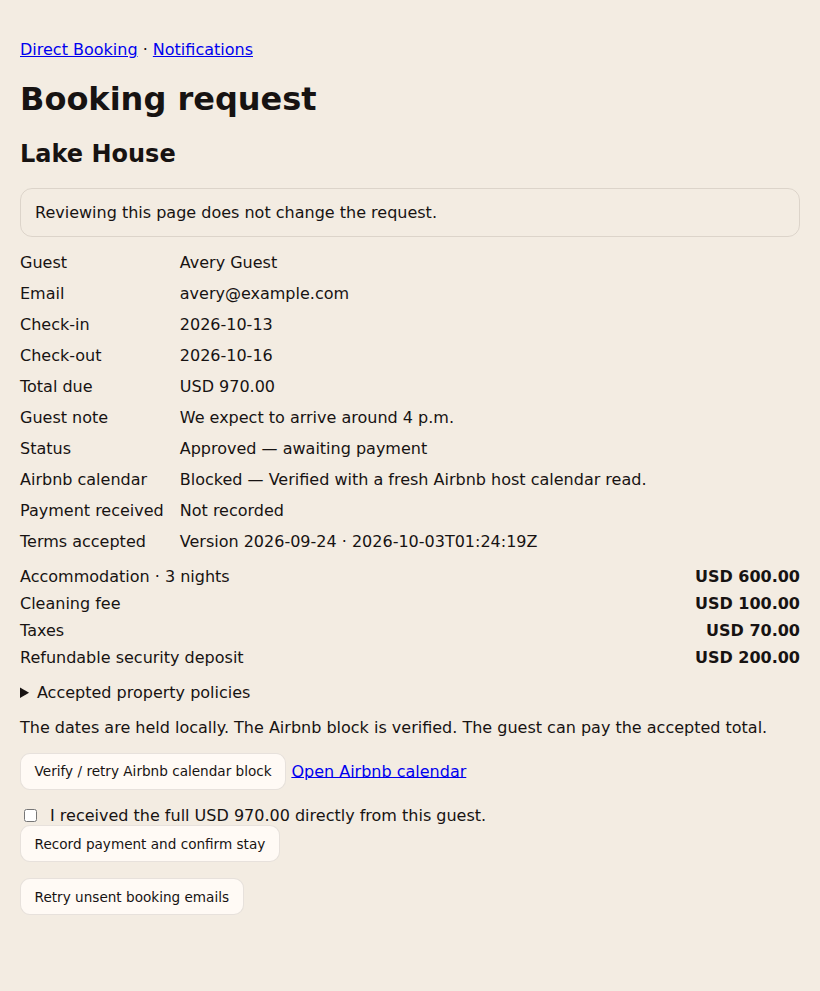
Once the calendar block is verified, acknowledge payment received to confirm the stay. Guest: receive the final confirmation
The guest receives Your stay is confirmed after you record the full payment and the Airbnb block is verified. The email includes the property, dates, guest name, itemized total and accepted terms.
They should keep this email for their stay. This is the final confirmation, following the earlier request and payment instructions.
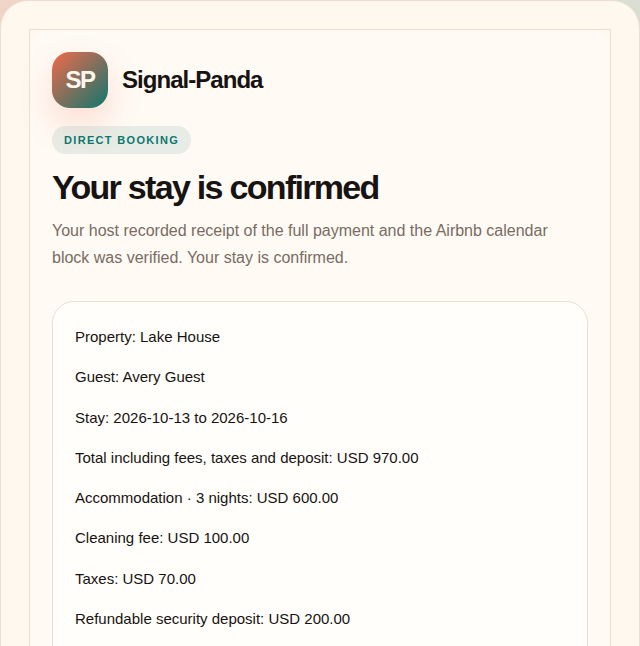
Confirmation email excerpt: the guest can keep the full email with their booking details and accepted terms.
More use cases
Follow the walkthrough that matches what you need to do next. Screenshots use sample data; select an image to enlarge it.
- Secure the dates after an Airbnb calendar failure
- Handle unavailable dates or decline a request
- Record direct-booking income in Accounting
Secure the dates after an Airbnb calendar failure
Use this when a request is approved but its Airbnb calendar status is pending or failed.
- Open the request from Notifications or the host review email. Check its dates and Airbnb calendar status. The approved request already holds the dates in Signal-Panda.
- In desktop Chrome, connect the extension and sign in to the matching Airbnb account. Use Open Airbnb calendar to inspect the requested nights, excluding checkout day.
- If the nights are open, block the intended nights in Airbnb or explicitly use Verify / retry Airbnb calendar block to retry. This action can write to Airbnb. If they are booked by another guest, stop and resolve the conflict; a booking cannot count as the required block.
- Return to the request and verify the block. Wait for the verified status and payment-ready email before asking the guest to pay. After receiving the full payment, acknowledge it and select Record payment and confirm stay.
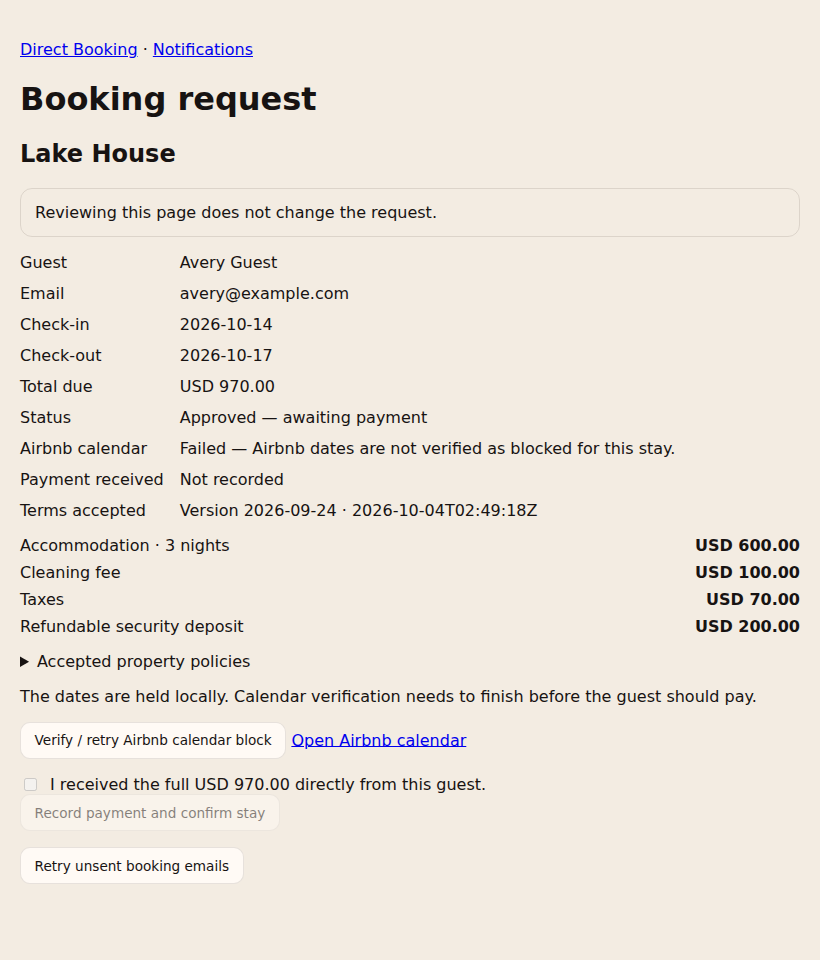
What to expect: The stay can be confirmed after both calendar verification and payment receipt. Reloading the review page alone does not retry the block.
Approved holds do not expire automatically and have no self-service release. Contact support if a hold needs attention.
Handle unavailable dates or decline a request
Use this when a pending request cannot be accepted or its dates have become unavailable.
- Open the pending request from Notifications and check the guest, dates and accepted price. Pending requests do not reserve the dates.
- If you cannot host the stay, select Decline request. If approval reports a fresh availability conflict, leave it unapproved and decide whether to decline.
- The guest receives a decline email. If they want different dates, they must return to the booking page, review a new quote and submit a new request.
- If delivery fails, keep the saved decision and use Retry unsent booking emails on the request.
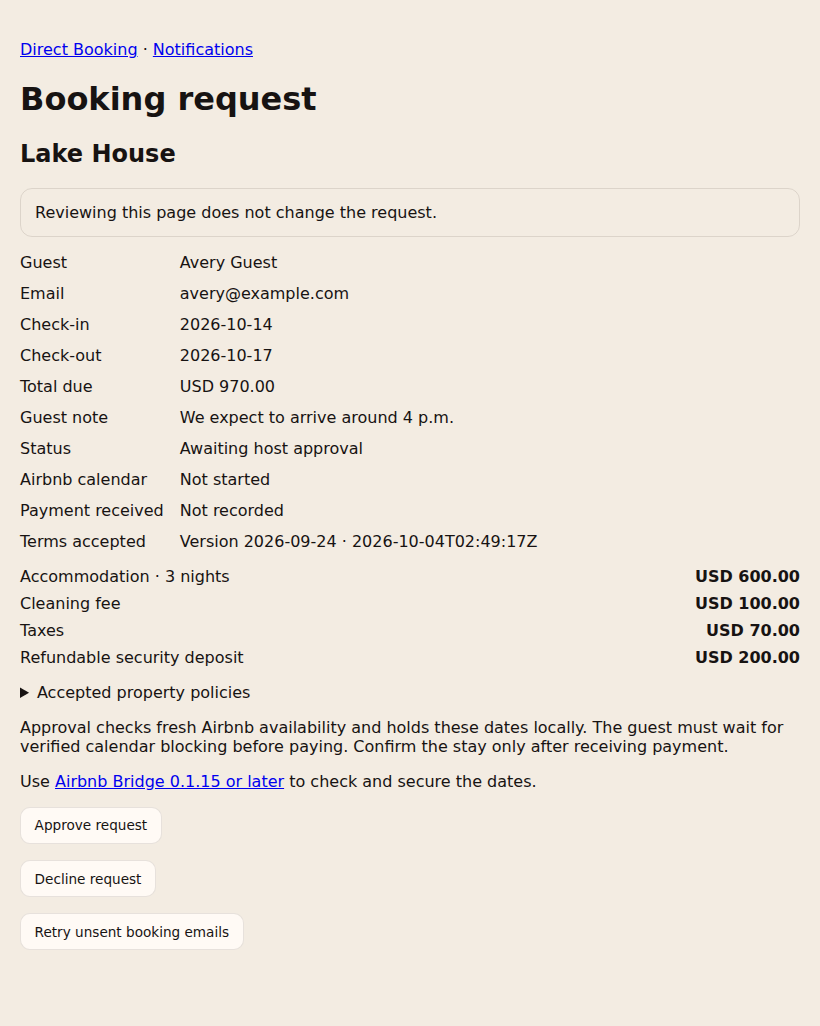
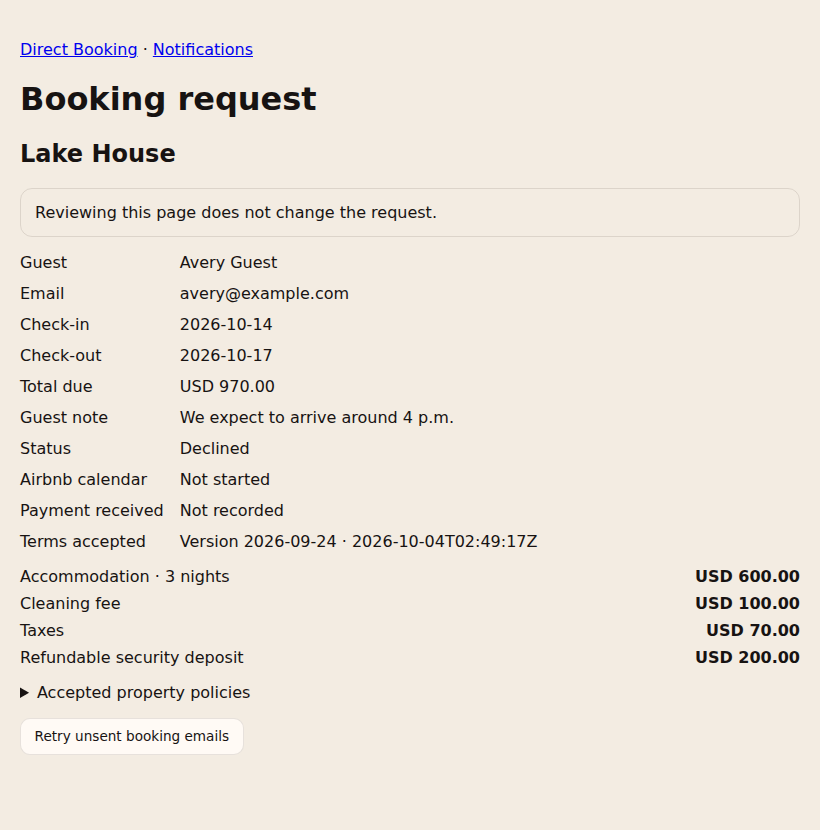
What to expect: The declined request does not create an approved hold or a payment request. This path applies to pending requests; it does not cancel an already approved stay.
Record direct-booking income in Accounting
Use this after receiving a guest payment that you need to include in your property records.
- Check the received payment and the booking’s itemized price. Confirm the stay through its request page once its calendar block is verified.
- Open Accounting → Books. Add an income transaction for the property, choose Direct booking, and enter its date, income amount and a memo identifying the stay.
- Select Add Transaction, then check the property’s ledger and income total for the selected dates. Check for an existing manual entry first.
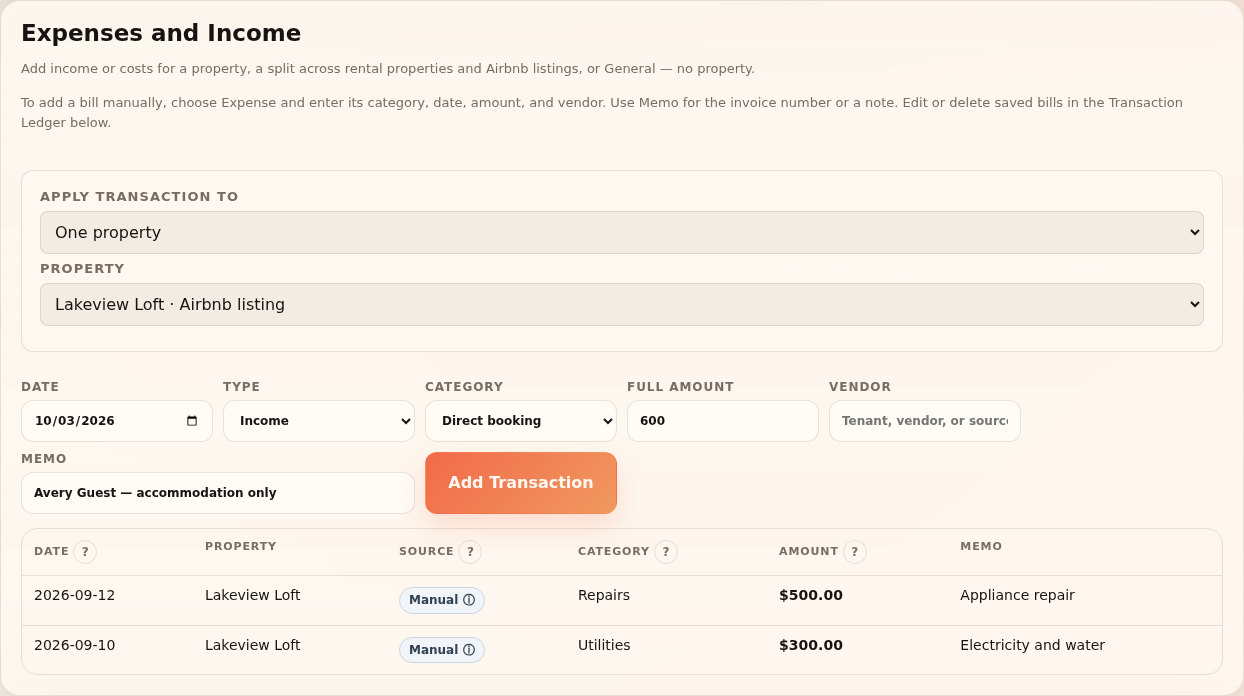
What to expect: The income appears in Accounting. Recording payment on the booking request does not automatically create this Books entry.
The guest’s total can include a refundable deposit and tax. Review the itemized amounts before choosing the income amount; do not copy the full payment into rental income without checking its components.
Frequently asked questions
Why can’t a guest request dates?
Check verification, availability, the Zelle recipient, and saved price/policy settings. A missing current price also blocks requests. Booking pauses while the property is marked long-term rented.
Why is payment confirmation disabled?
The Airbnb block must be verified first. Return to the request, resolve the calendar issue, and retry verification. Record payment only after you actually receive it.
Does an unpaid approved hold expire?
No. Approved holds have no automatic expiry or self-service cancellation/release workflow yet. Contact support if a hold needs attention.