How Climate Auto works
Before you start: Add an Airbnb listing in Settings and confirm the devices work in their provider’s app. Automatic routines currently support LG and Sensibo. Rental-only properties are excluded.
Screenshots use sample data. Select any image to enlarge it.
Choose the property and connect
Open Climate Auto and choose the property. Open Provider setup, follow the provider’s setup instructions, enter its required credentials, and choose Connect and scan devices for LG or Sensibo.
Jump directly to LG ThinQ or Sensibo. Google Nest can connect for device control when its app connection is configured, but does not support checkout routines. Other providers have setup guides only.
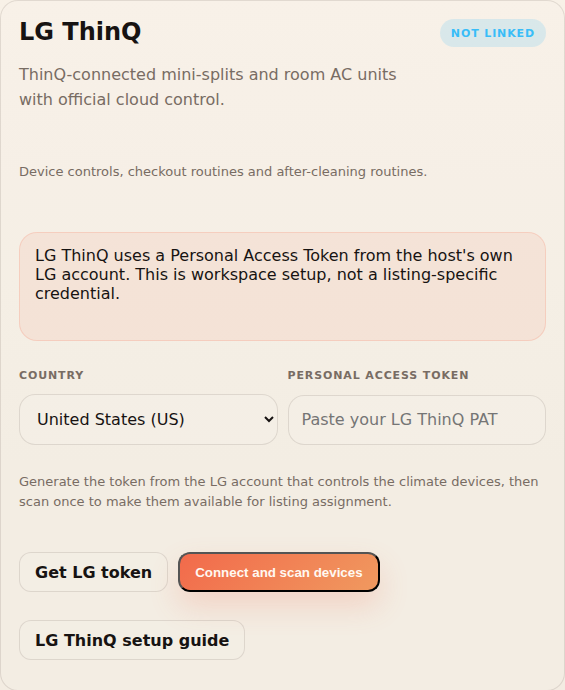
Connect the provider account before assigning its devices. Assign this property’s devices
Return to the listing, choose the provider and select the units installed at that home. Select Save devices to listing, then check the assigned device list. Repeat for another supported provider if needed.
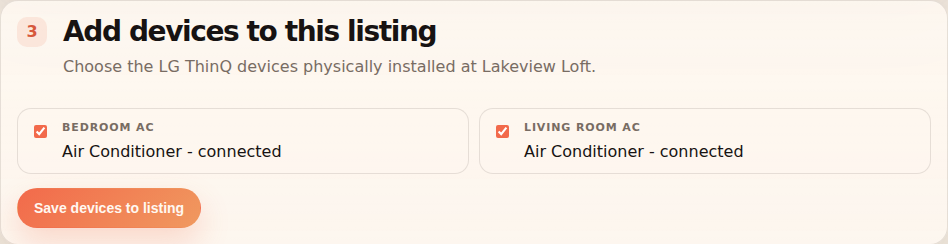
Select only the units installed at this property, then save. Example · keep each home separate - Lakeview Loft
- Living room AC + bedroom AC
- Garden Studio
- Studio AC
Applying settings from Lakeview Loft controls its assigned units. Check the names before saving.
Choose when and what to apply
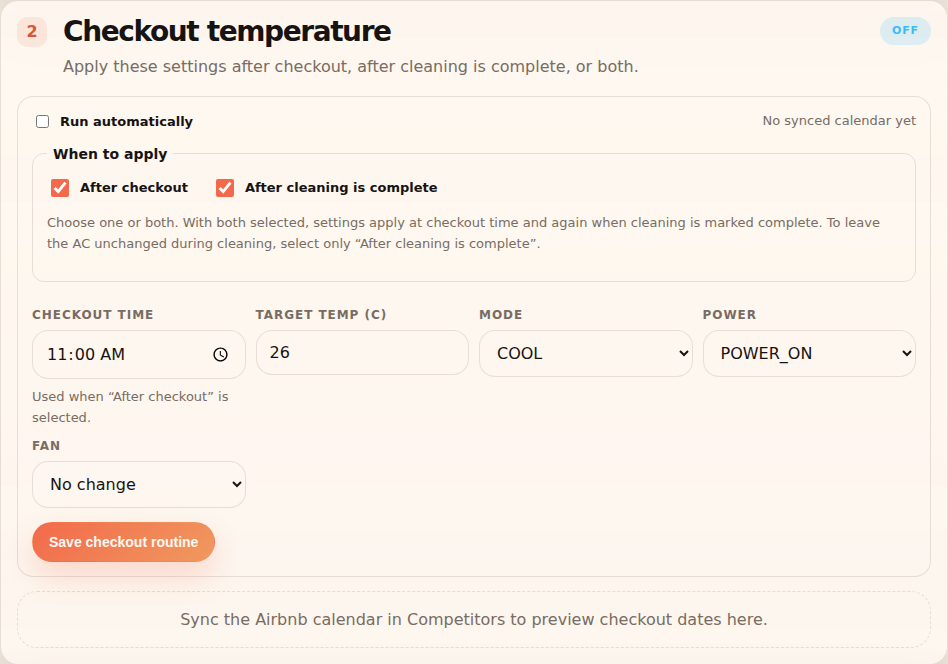
Under Checkout temperature, choose the target temperature, mode, power and fan settings. Check the displayed temperature unit; No change leaves that setting alone.
In When to apply, choose After checkout, After cleaning is complete, or both. Checkout needs a synced Airbnb calendar and a Checkout Time. Cleaning needs an active cleaner assignment in Cleaning.
Enable Run automatically and select Save checkout routine. Save a routine for each assigned supported provider.
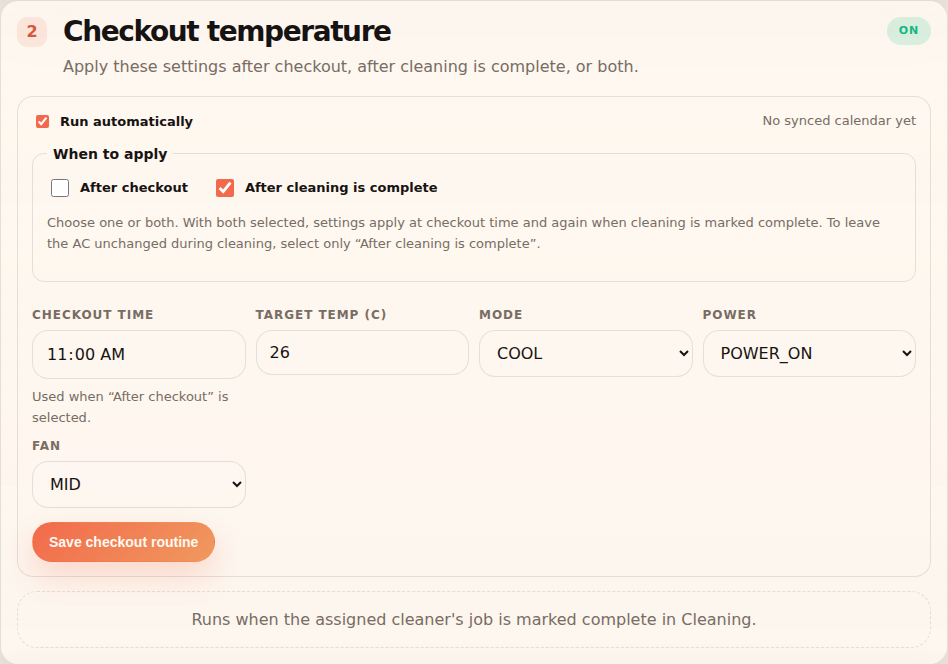
This example applies saved settings after cleaning is marked complete. Example · wait until cleaning finishes - After checkout
- Off
- After cleaning is complete
- On
- Run automatically
- On
Saved settings apply when cleaning is marked complete. Selecting both triggers applies them at checkout time and again after cleaning.
Apply now or check the next run
Review the checkout preview and device command results. To apply immediately, save your changes first, then choose Apply checkout settings now. This sends real commands to all assigned LG and Sensibo units at the selected property.
The manual action uses saved settings even when automatic scheduling is off, and does not need a calendar. Check each unit’s result; a partial failure means some units may already have changed.
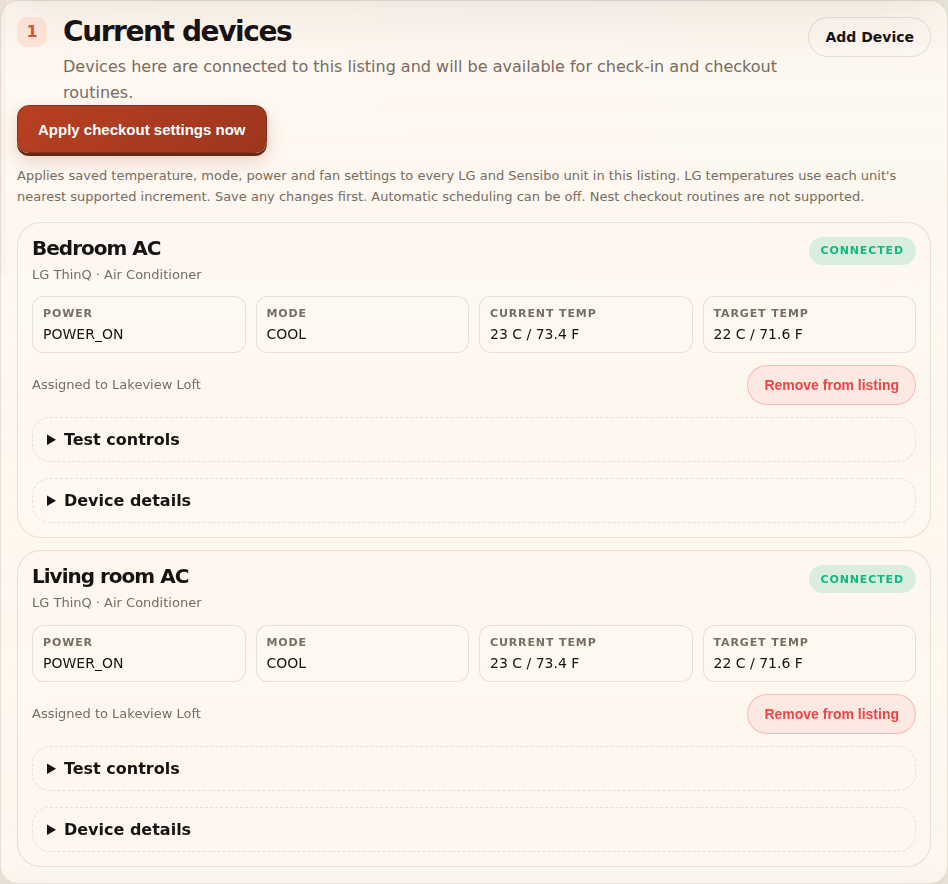
Apply checkout settings now sends the saved settings to the assigned units.
More use cases
Follow the walkthrough that matches what you need to do next. Screenshots use sample data; select an image to enlarge it.
- Run at checkout, after cleaning, or at both times
- Test one AC unit before applying settings to the property
- Investigate a partial failure or pause automatic changes
Run at checkout, after cleaning, or at both times
Use this to decide when a property’s saved AC settings should take effect.
- Choose the property and its LG or Sensibo provider in Climate Auto. Confirm the assigned devices and save the target temperature, mode, power and fan settings.
- For checkout only, select After checkout and clear the cleaning trigger. Set Checkout Time, sync the Airbnb calendar and check the checkout preview.
- For cleaning only, first assign an active cleaner in Cleaning. Return to Climate Auto, select After cleaning is complete and clear checkout. This waits for the job to be marked complete and does not need the checkout clock or an Airbnb calendar.
- For both, select both checkboxes and meet both prerequisites. Enable Run automatically and select Save checkout routine. Repeat for each assigned supported provider.
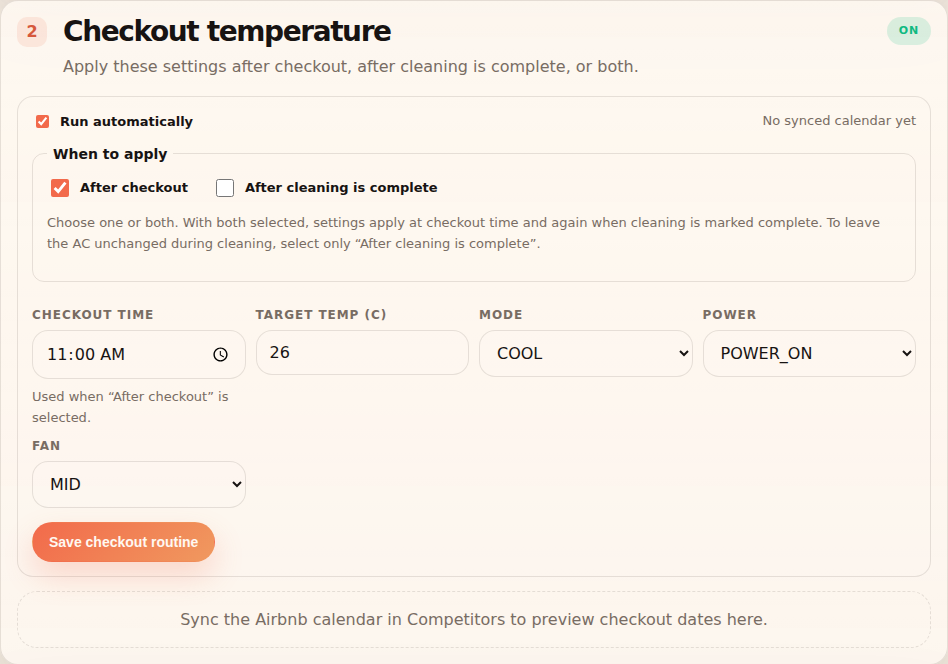
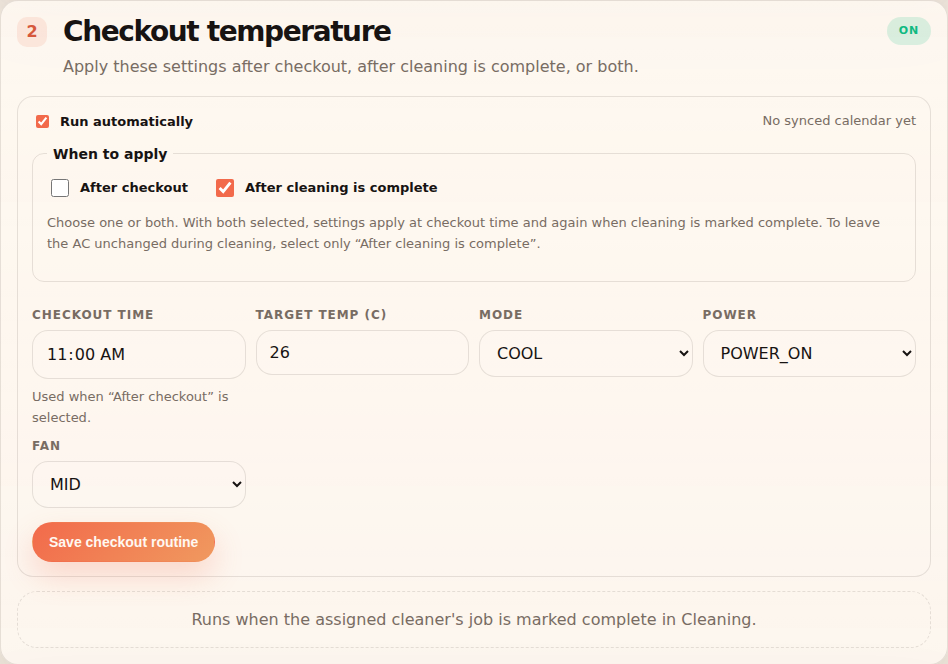
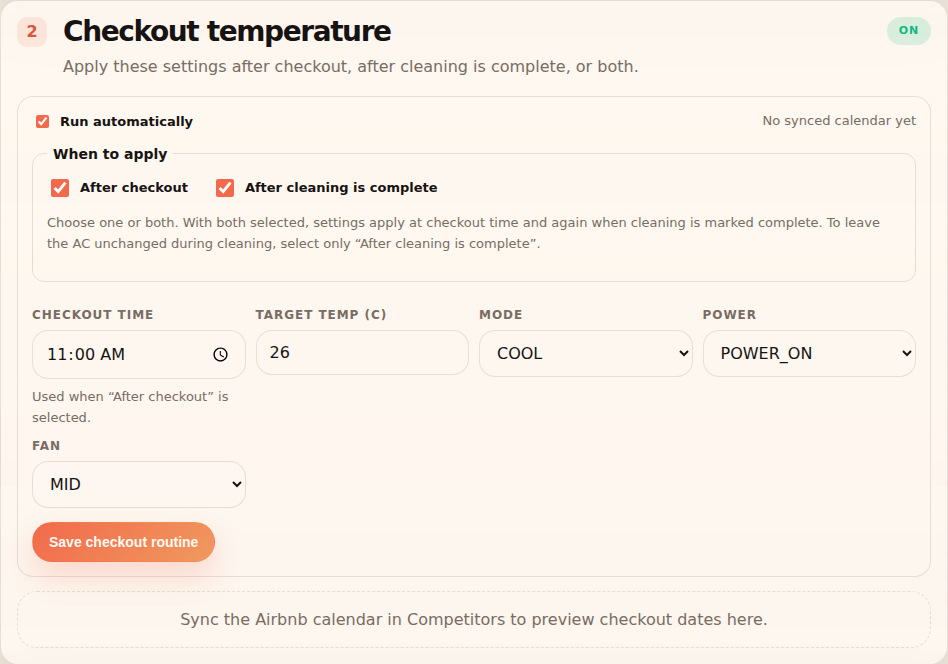
Example: To leave the AC unchanged while the cleaner works, choose cleaning only. Choosing both applies the saved settings at checkout time and again when cleaning is marked complete; it does not wait for both events.
What to expect: The saved routine follows the selected events. Removing the active cleaner pauses the cleaning trigger while a selected checkout trigger can still run.
Test one AC unit before applying settings to the property
Use this after connecting or assigning a device, or when investigating one unit.
- Open the selected property’s assigned device list and confirm the unit’s name. Expand that unit’s Test controls.
- Choose only the power, mode, temperature or fan changes you want. Leave the other controls at No change or blank, and check the displayed temperature unit and supported range.
- Select Send Test Command. It sends a real command to that unit. Read the page’s result message and check the device’s state in its provider app.
- When satisfied, save your desired automatic settings under Checkout temperature. Use Apply checkout settings now only when you intend to send saved settings to all assigned LG and Sensibo units.
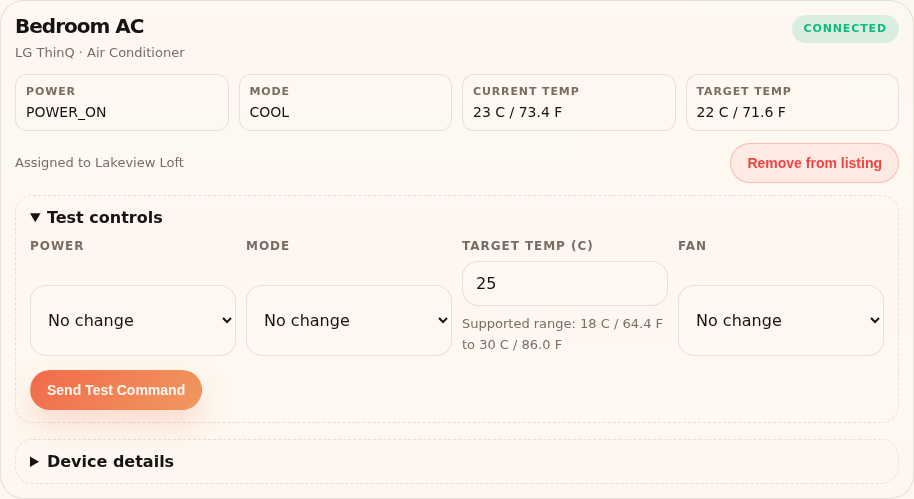
What to expect: You have tested one device. A test command does not replace the saved checkout routine.
Investigate a partial failure or pause automatic changes
Use this when only some units accept a command or you want to suspend scheduled changes.
- Read the page’s result message and any reported device error. Check individual units in their provider app. Successful units may already have changed; a partial failure does not undo them.
- Check the failed unit in its provider app, its account connection, and the supported mode and temperature range. Resolve the reported issue, then use that unit’s Test controls to check it.
- If retrying Apply checkout settings now, remember that it sends the saved settings to all assigned supported units again.
- To pause automatic changes, clear Run automatically and select Save checkout routine for each provider. To resume later, check the triggers and prerequisites, enable it again and save.
What to expect: Automatic changes stop for the providers you disabled. Test controls and manual apply still send real commands when selected.
Frequently asked questions
Why can’t I select the cleaning trigger?
Assign an active cleaner to the property in Cleaning. Removing that assignment pauses the cleaning trigger; a selected checkout trigger can still run.
Why is Apply checkout settings now unavailable?
Assign LG or Sensibo units and save a target temperature for each assigned provider. Nest routines are not supported. Save changes before applying; unsaved edits are not sent.
How do I stop automatic changes?
Clear Run automatically and save the routine for each provider. Manual device controls and Apply checkout settings now still send commands when you choose them.